Quickstart: your first monitored table in 10 minutes
This is a start-to-finish walkthrough for someone opening DQX Studio for the first time. By the end you'll have a rule you built, applied to a real table, run, with results on screen — no code.
Follow the steps in order. Each one builds on the last.
You'll need a table in Unity Catalog that you already have access to. DQX Studio
only ever shows you data you can already see, so pick a table you know — an
orders, customers, or similar table works well.
0. Set up DQX Studio (administrators, once)
If your workspace administrator has already installed Studio and it opens to the home page, skip to step 1. Otherwise an administrator completes this once. The full procedure, including the Declarative Automation Bundle route, is in the installation guide.
This release changes Studio's storage layout and permission model. There is no upgrade path from earlier installations: remove the previous app, its task-runner job, warehouse, Unity Catalog schemas, and Lakebase project before installing.
- Install DQX Studio from the Databricks Marketplace and bind a SQL warehouse and a Lakebase endpoint.
- Share the app with your audience group and your administrator group (Compute → Apps → DQX Studio → Permissions → Can Use).
- Open Studio as a workspace administrator and fill in the setup form: the catalog, a storage prefix (default
dqx_studio), and the audience group (an existing group such asdqx-studio-users). - Run the
GRANTstatements setup prints, if any, and choose Verify again until every step is green. If the app's sharing cannot be verified, setup shows a warning instead; confirm step 2 manually. - Assign roles in Admin Settings → Entitlements so the audience groups become Authors, Approvers, and Viewers.
See Permissions & Entitlements for exactly what each group needs.
1. Create a reusable rule
A rule is a reusable definition of a data-quality expectation — for example, "this column is never blank". Author it once here, and you'll be able to apply it to as many tables as you like.
Go to Rules and choose New rule. You'll fill in two tabs:
- On the About tab, give the rule a name and a short description, pick a default severity (Low, Medium, High, or Critical), and choose a dimension (such as completeness or validity — the quality aspect this rule measures).
- On the Implementation tab, pick a check from Basic Rules — for example is not null, which flags any blank value. That's all a simple rule needs.
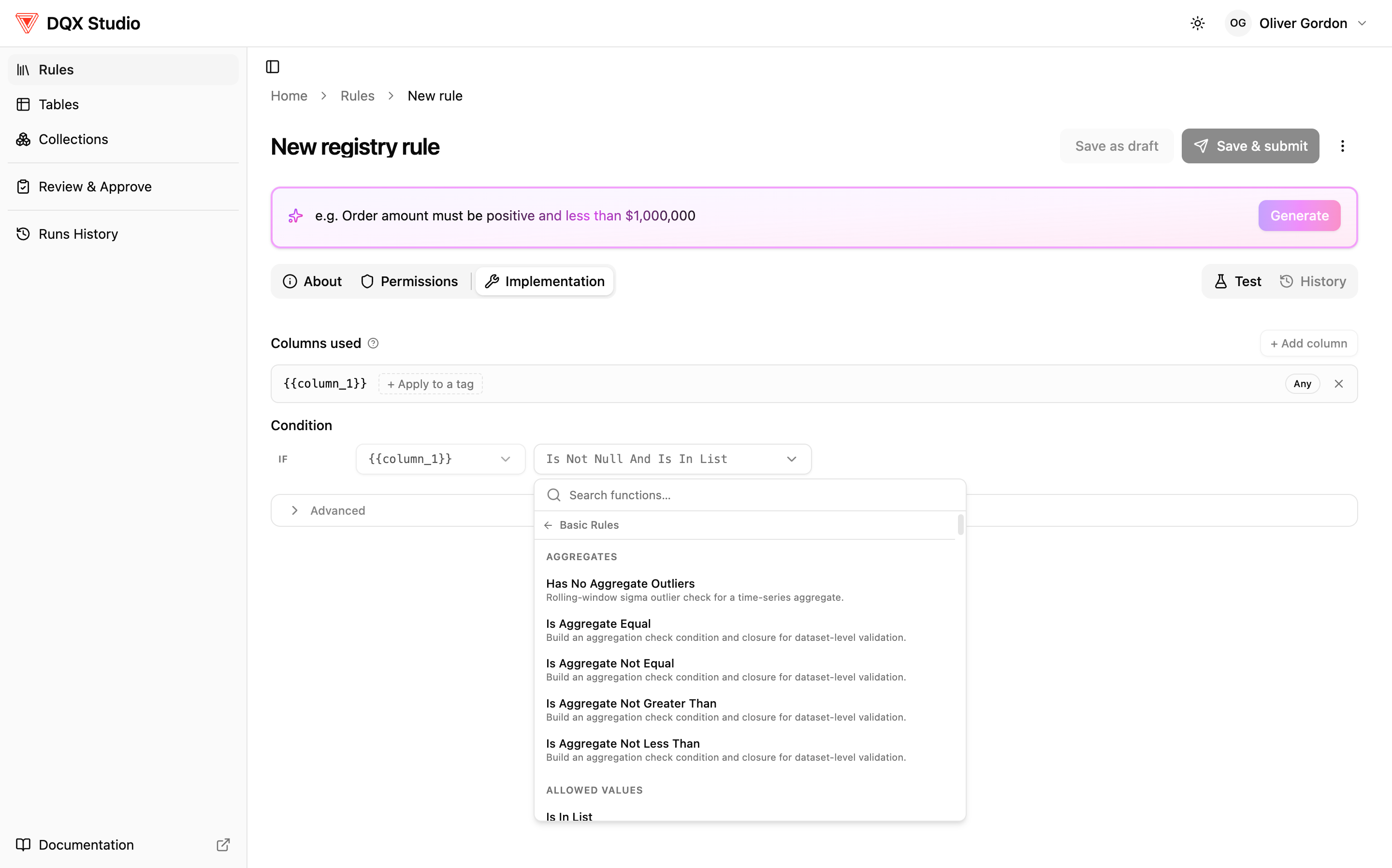
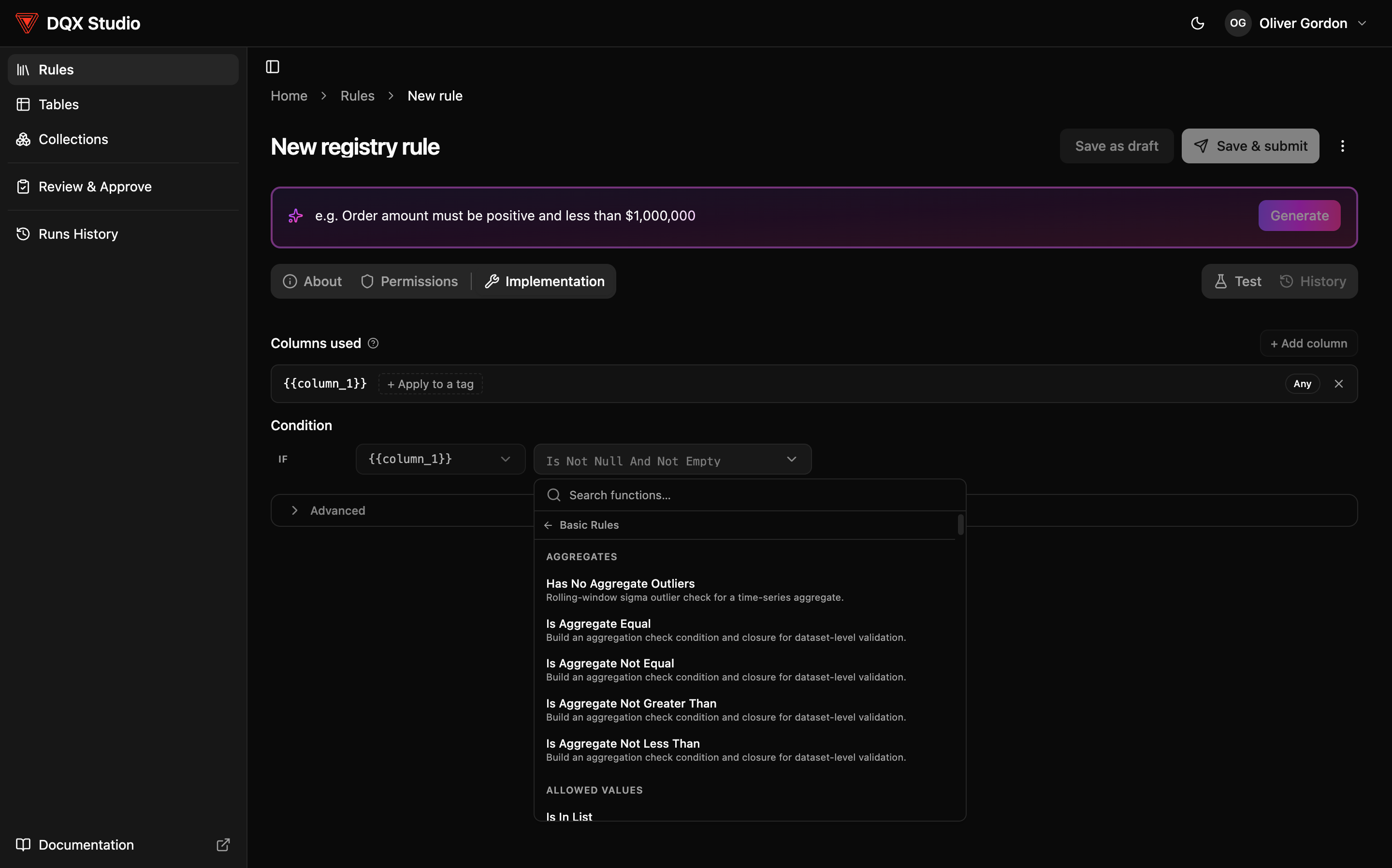
On the About tab you can also describe the rule in plain English and let AI generate the check for you. See Create a rule for both approaches.
Save the rule. It lands in your Rules Registry — your library of reusable rules — ready to apply.
2. Add a table to monitor
Before you can apply a rule to a table, you register the table with DQX Studio.
Go to Tables and choose Monitor a table. Browse Unity Catalog and pick the table you chose above. Because DQX Studio only shows data you already have access to, if a table isn't listed it's a permissions matter, not a bug.
3. Apply your rule to the table
Open your table and go to its Apply Rules tab. Find the column your rule fits and apply the rule to it. This turns the rule into a check — the same rule can become many checks across different columns and tables.
Here you can override the rule's defaults for this table:
- Severity — keep the rule's default, or change it for this check. Severity is a priority for triage and reporting; it doesn't decide pass or fail.
- Pass threshold — optionally require that, say, "70% of rows must pass" before the check counts as healthy. Thresholds are set per rule and per column, which is handy for gradual clean-up. See Set quality thresholds.
Your table is now a monitored table — the single place to see and manage that table's data quality.
4. Let it go through approval
Rules don't go live the instant you make them: your check is submitted for review, and an approver signs off before it becomes active. See the Approval workflow. For this walkthrough, assume it's approved.
5. Run the checks
With an active check in place, trigger a run from your monitored table. DQX Studio reads the table and evaluates the check against every row. It never changes your data; it only reports what it finds. See Run checks & schedule.
6. See your results
When the run finishes, open the table's Results. You'll see an overall data quality score and a breakdown of what passed and what didn't. The useful part is the Failed records table — hover a failing row to see exactly which checks it failed, each with its severity and the reason, so you know what to fix.
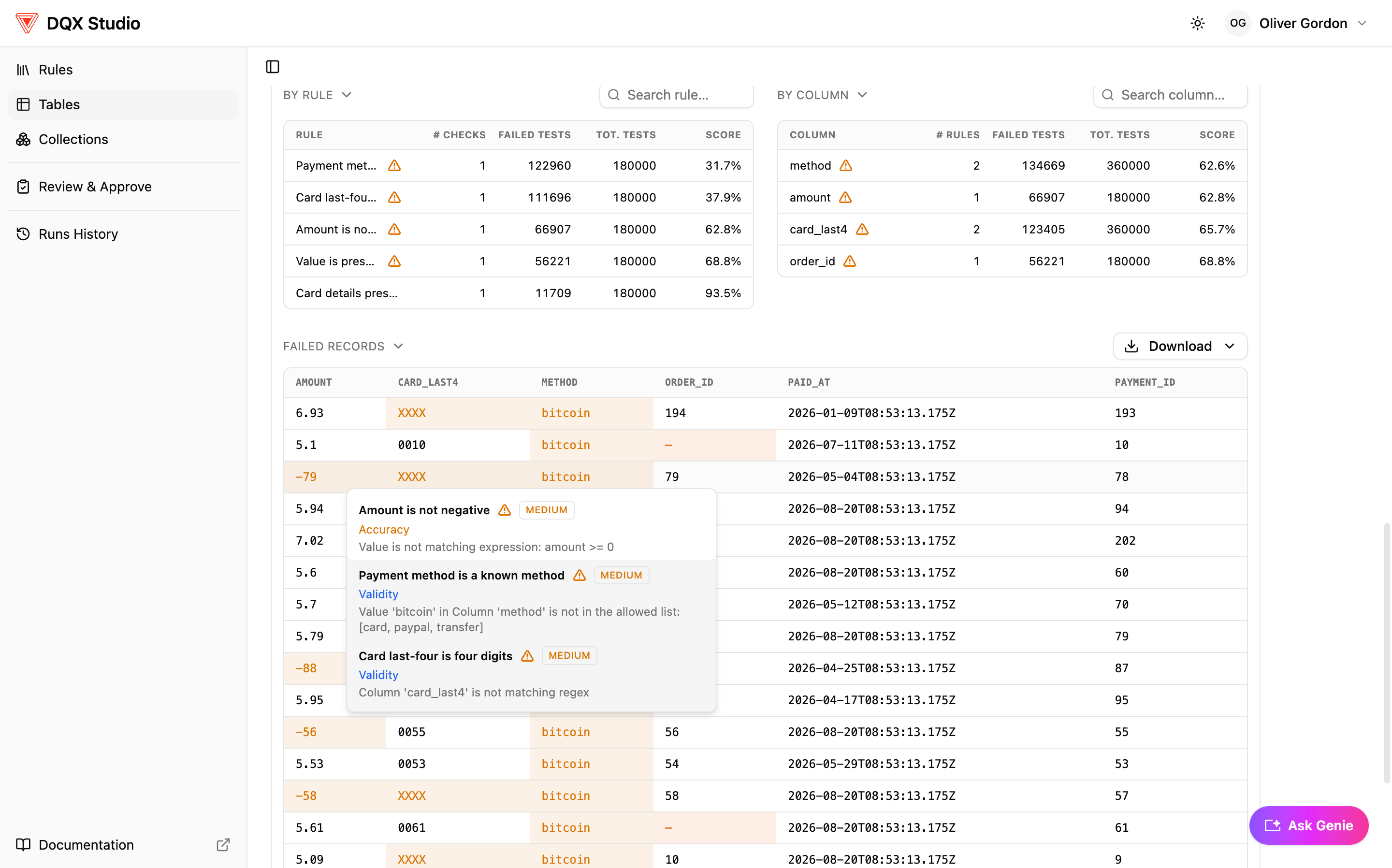
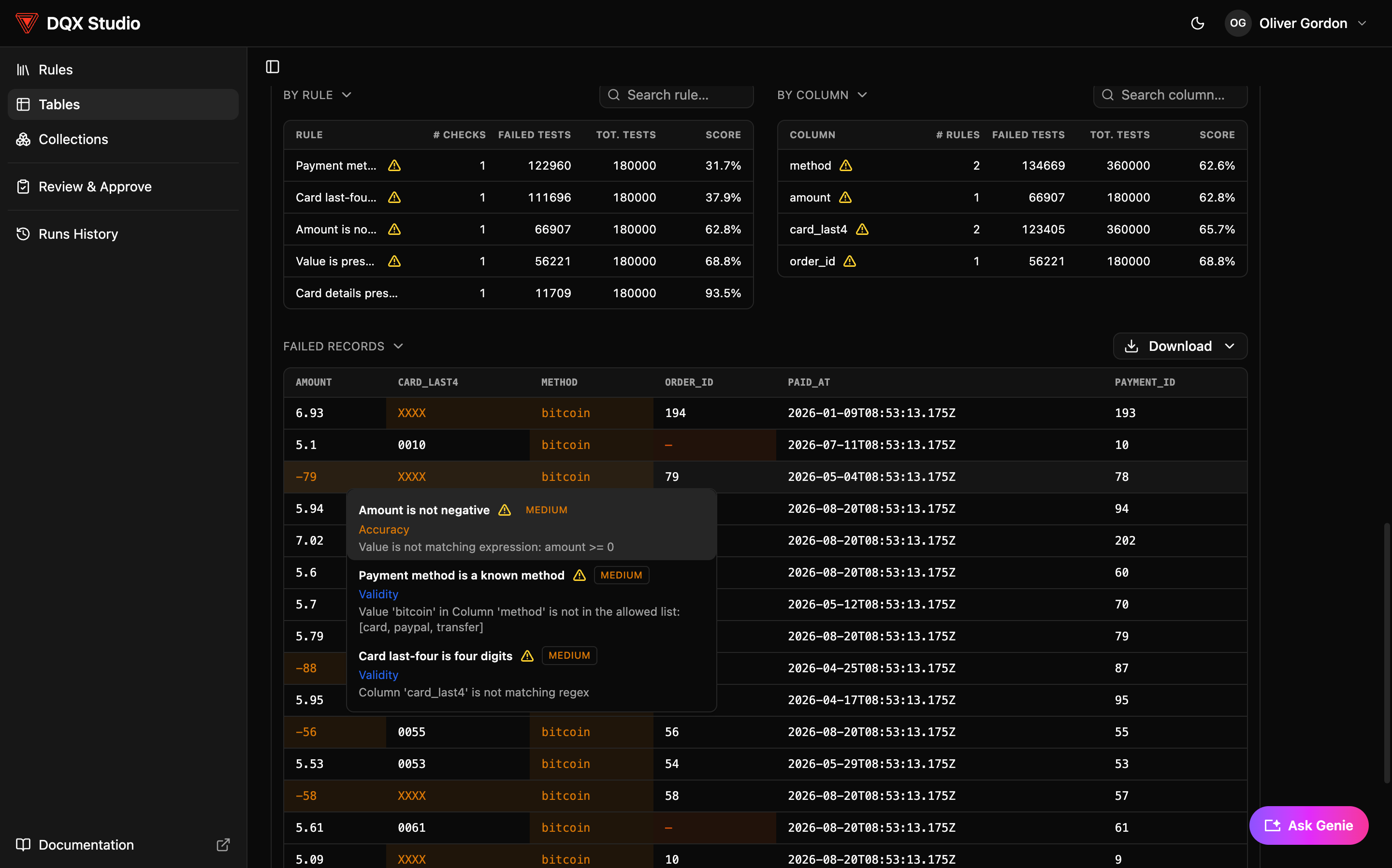
That's the whole loop: a rule, applied to a table, run, with results you can act on. See Review results to read a score and work through the rows that didn't pass.
A failing check never deletes or edits your data. Failing rows are copied into a quarantine table so you can triage them.
What next?
- Key concepts — the handful of ideas (rules vs checks vs tests, the three levels, roles) that make everything else click.
- Create a rule — go deeper on building rules, including custom conditions and AI generation.
- Monitor a table — register more tables and apply your rules across them.