Governance & security
This section is for governance admins accountable for how DQX Studio is run. It covers configuring the app once it's installed.
If you're setting DQX Studio up for the first time, the rollout playbook below walks you through it. For the day-to-day detail behind each step, follow the links into the rest of this section.
Configure DQX Studio
You set a handful of org-wide policies once — how roles map to your teams, your approval rules, your shared standards (governed tags, quality dimensions, default thresholds), and data retention. From then on, every author, approver, and steward works within them.
Everything below lives under Admin Settings and is only available to people with the Admin role. If you can't see Admin Settings, ask an existing admin.
Step 1 — Map roles to your teams
Map your existing Databricks workspace groups to DQX Studio's four roles — Viewer, Rule Author, Rule Approver, Admin. Running checks is part of the Author role, so authors can run what they write; approvers review rather than run. Assign groups rather than individuals, so access follows people as they join and leave. Start narrow: most people as Viewer or Author, a small group as Approver and Admin.
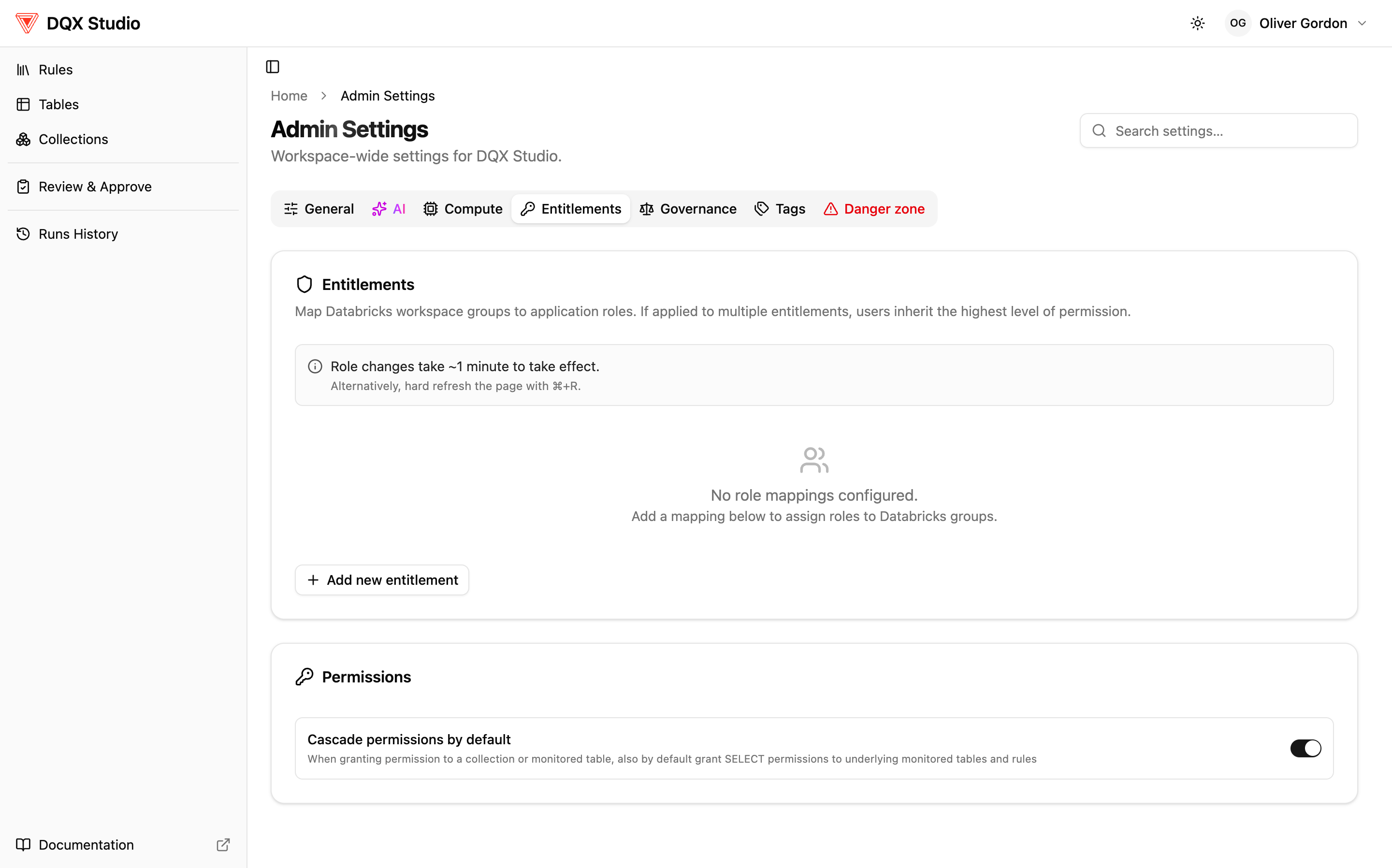
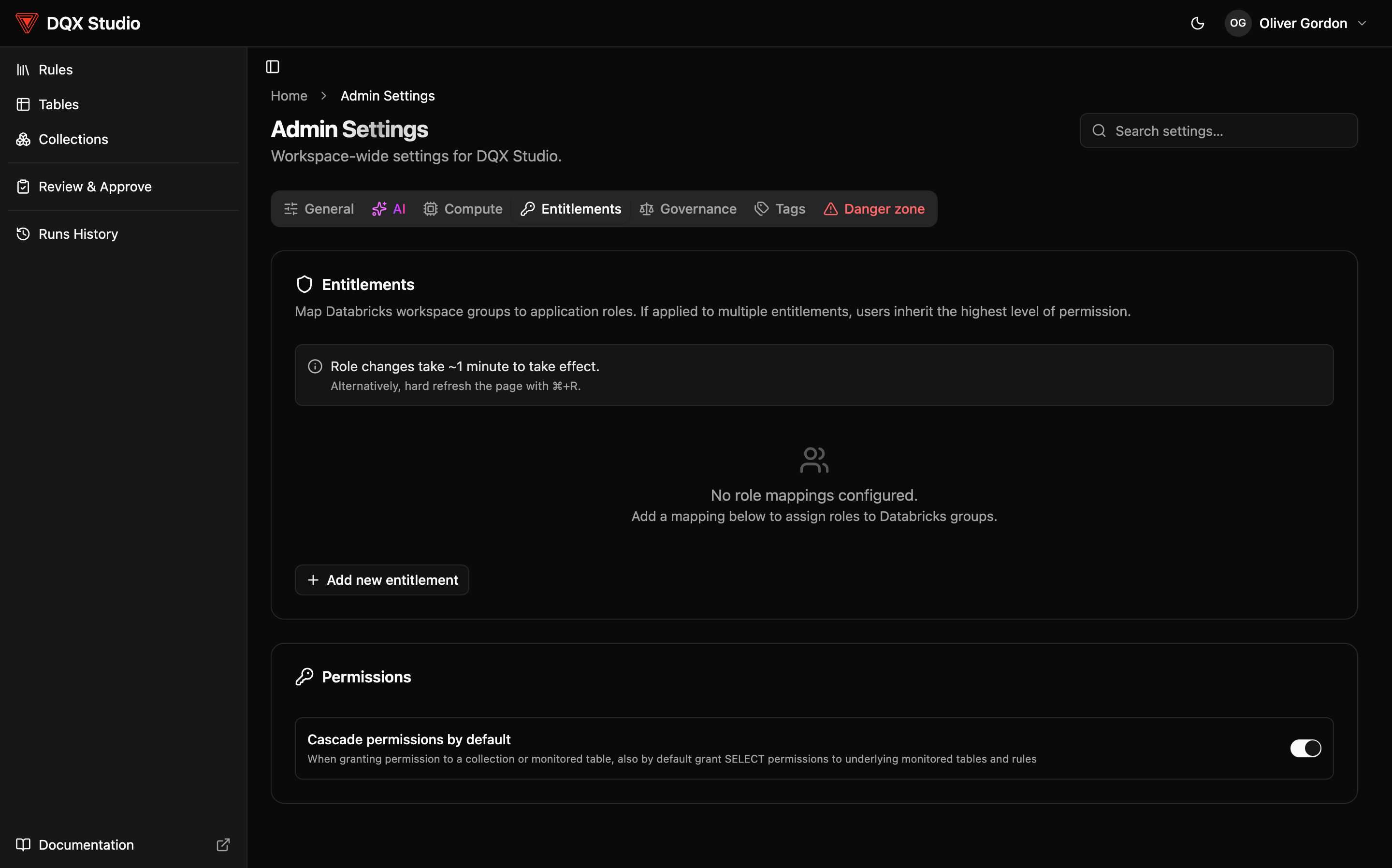
Full detail: Permissions & entitlements.
Step 2 — Decide your approval policy
By default DQX Studio uses four-eyes approval: an author submits a draft and someone else approves it before it goes live. Keep this on for production; for a sandbox you can allow auto-approval. The setting is itself audited.
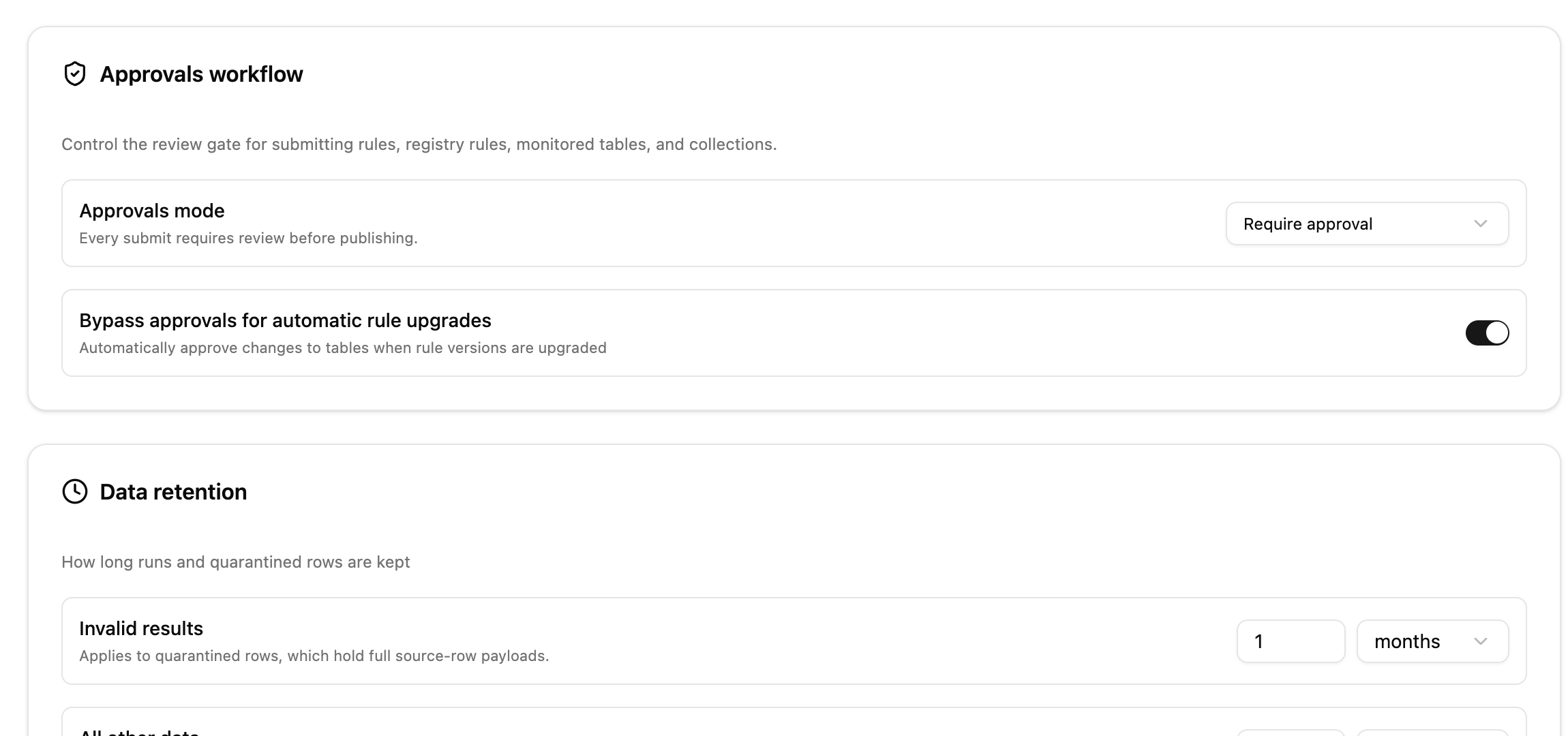
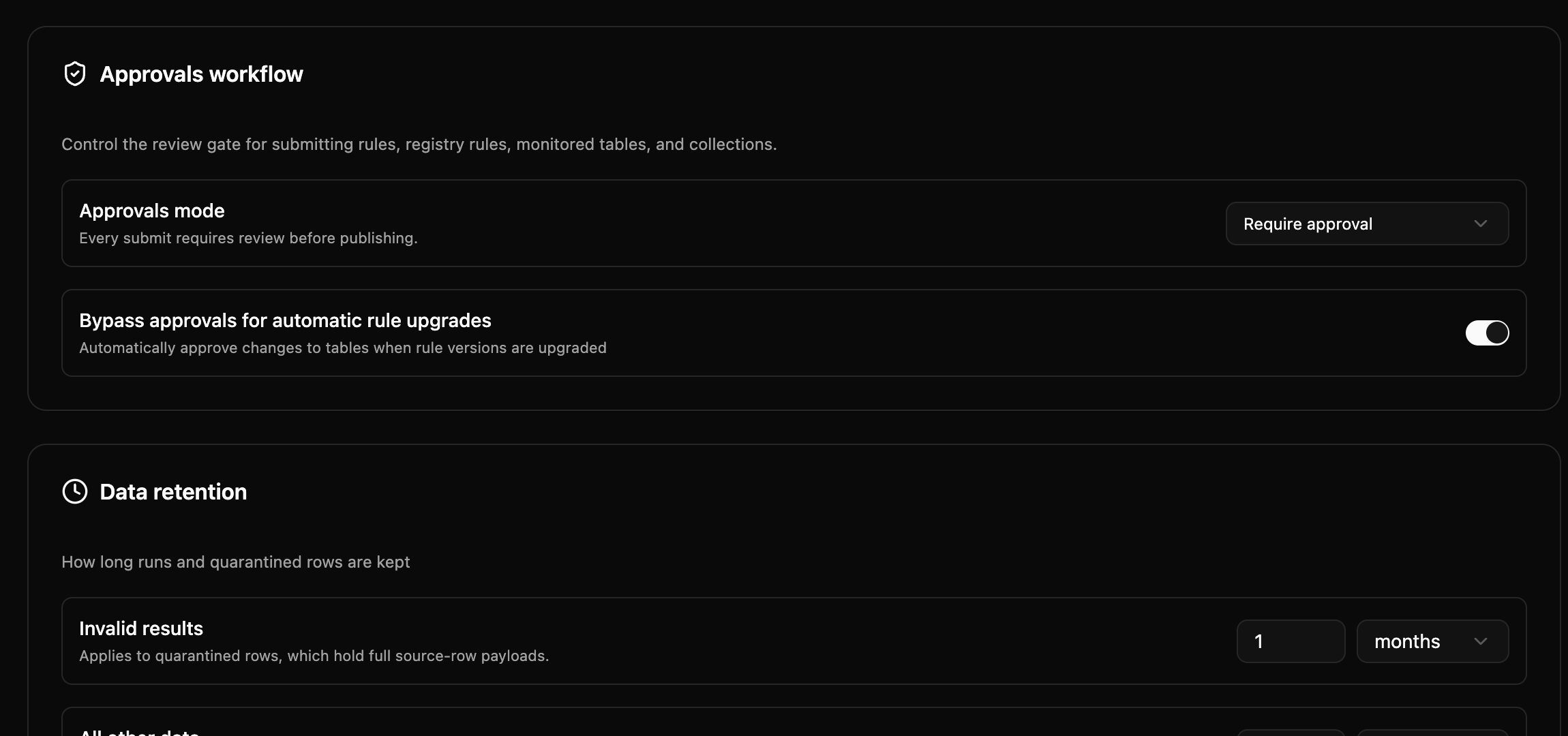
Full detail: The approval workflow.
Step 3 — Define your standards
Set the shared vocabulary authors will reuse:
- Governed tags — reusable labels such as
domain,pii, orclass.location. These are defined in Unity Catalog, not in DQX Studio, and authors pick from them (or create their own in Unity Catalog) when tagging a rule's column. A tagged rule then auto-applies to matching columns. See Governed tags. - Quality dimensions — the categories you report against (completeness, validity, accuracy, consistency, uniqueness, timeliness).
- Default pass thresholds — how strict a check must be to count as passing. Set a sensible default; authors can override per table. See Set quality thresholds.
Step 4 — Set retention and handle sensitive data
In Admin Settings you choose how long runs, results, and metrics are kept, and — separately — how long quarantined rows (which may contain sensitive data) are kept. Keep the evidence long enough to investigate, then let it clear to minimize the app data.
With roles, approvals, and standards in place, point authors at the Quickstart and stewards at Review results.
How DQX Studio respects your data access
DQX Studio browses Unity Catalog on your behalf — you only ever see catalogs and tables you already have permission to, and profiling and tests run under your own access. It never widens anyone's permissions. Quarantined rows are visible only to approvers and admins, and still only for data they can already read.
Every change to a rule, role, permission, or schedule is audited — who changed it, when, and the before-and-after values. Review a rule's history on its History tab (and a collection's on the collection's History tab); the complete trail is kept in append-only history tables in the app's own catalog.
In this section
- Permissions & entitlements — roles across the app, and per-object access.
- The approval workflow — draft → review → approve, and the four-eyes rule.
- Try the built-in demo — deploy sample content from Admin Settings to explore every feature.