Review results
After a run finishes, its results show up here — where you read the quality score, see which checks failed, and drill into the failing rows to decide what to fix. Every monitored table and collection has a Results view.
Read the score
At the top is the DQ score — a 0–100% summary of the latest run. A rule becomes a check when you apply it to a column, and each check produces one test per row when it runs; the score is the average test pass rate across all of them. A collection score is the average DQ score across its member tables. Below the score, breakdowns split the results by dimension, severity, rule, and column, so you can see where quality is slipping.
A check is flagged as failing when its pass rate drops below its
pass threshold (the
< 70% badge) — that's separate from the numeric score, which always uses the
raw pass rate.
Investigate and act on a failure
The breakdowns are interactive: select a dimension, severity, rule, or column to filter down to just those results, and on a collection you can drill into a member table to open its own Results and keep going. To see what actually went wrong, open the Failed records table and hover a failing cell — a popup lists every check that flagged the row, each with its severity and reason.
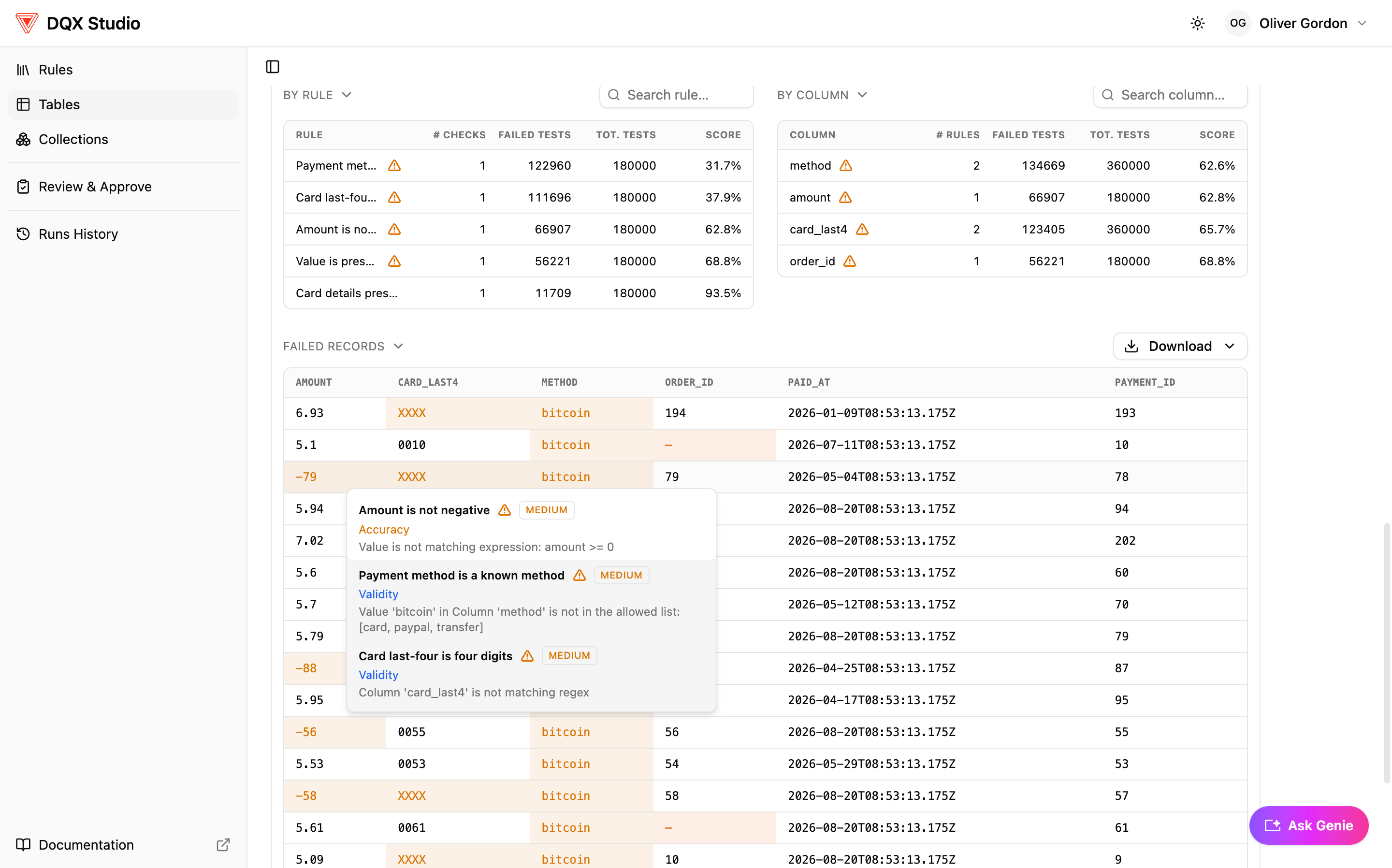
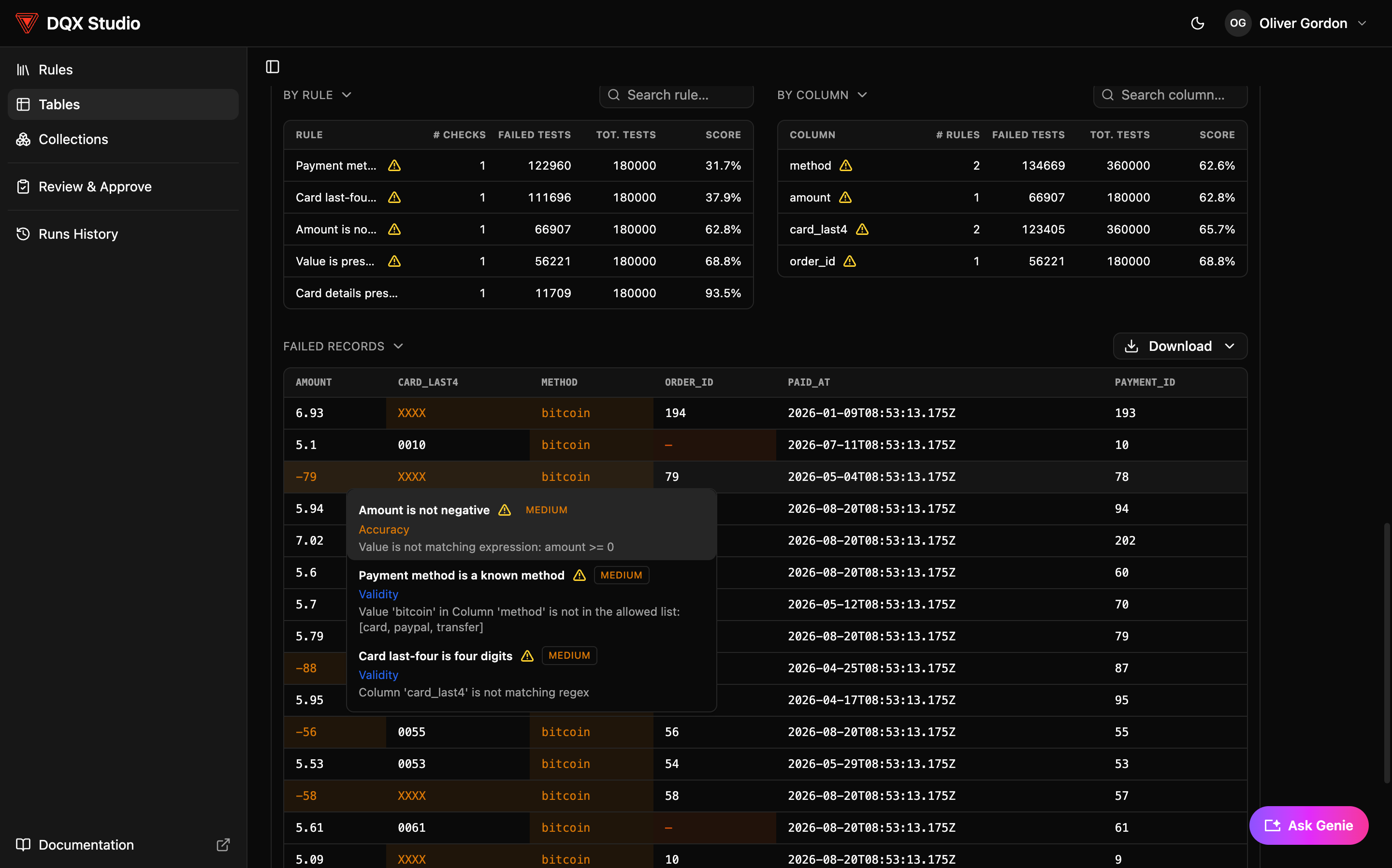
A failing check is a signal to act, not always a problem with the rule. You can fix the data at source, adjust the threshold if the target was unrealistic, change the severity to reprioritize, refine the rule, or escalate to the team that owns the data. The Show comments control opens a notes thread so you can record what you found and hand it off — each comment keeps its author and timestamp.
Failing a check never deletes or edits your data. The failing rows shown here are copied into a quarantine table purely so you can inspect them — you can also query that table directly.
Ask Genie
Ask Genie turns your results into a conversation. Open the panel on any Results view and ask a question in plain English — "which columns have the most failures?", "why did my score drop?" — and Genie answers with a short explanation and, where it helps, a chart. There's no SQL to write; it's built on Databricks Genie and reads the same results you're already looking at.
Not sure what to ask? Genie opens with suggested questions grouped by what you're trying to do — Basic stats, Drilldown, Trends over time, and Diagnose. Every conversation stays with the table or collection you opened it from, and you can start a New conversation or revisit an earlier one from History at any time.
Analyse in Lakehouse
Failing rows captured by Studio's runs land in a Delta table in your Studio catalog, which you can query outside the app from SQL, a notebook, or an alerting job:
SELECT quarantine_id, run_id, created_at, row_data, errors, warnings
FROM <catalog>.<prefix>.dq_quarantine_records  -- default prefix: dqx_studio
WHERE source_table_fqn = 'main.sales.orders'
ORDER BY created_at DESC
LIMIT 100;
row_data holds the full source row and errors / warnings the checks it failed, all as
VARIANT. Because the rows
are real source data, treat the table as a possible PII surface and grant access
accordingly. Records are deleted after quarantine_retention_days (default 30).
The table may not hold every failing row: draft runs evaluate only a sample of the source table, and cross-table SQL checks cap their quarantine at 100,000 rows. Row-level checks on a full or scheduled run write the complete invalid set. Keep that in mind when building alerting or triage jobs on it.
For more recipes — reading fields out of the source row, exploding failed checks into rows, counting failures by check, and joining to run details — see the Query Results Cookbook.