Assign rules
Assigning rules is where the reusable definitions in your Rules Registry start doing work: you attach them to a monitored table's columns and tune them for that table. Each rule you apply to a column becomes a check — a single rule can become many checks across your tables and columns.
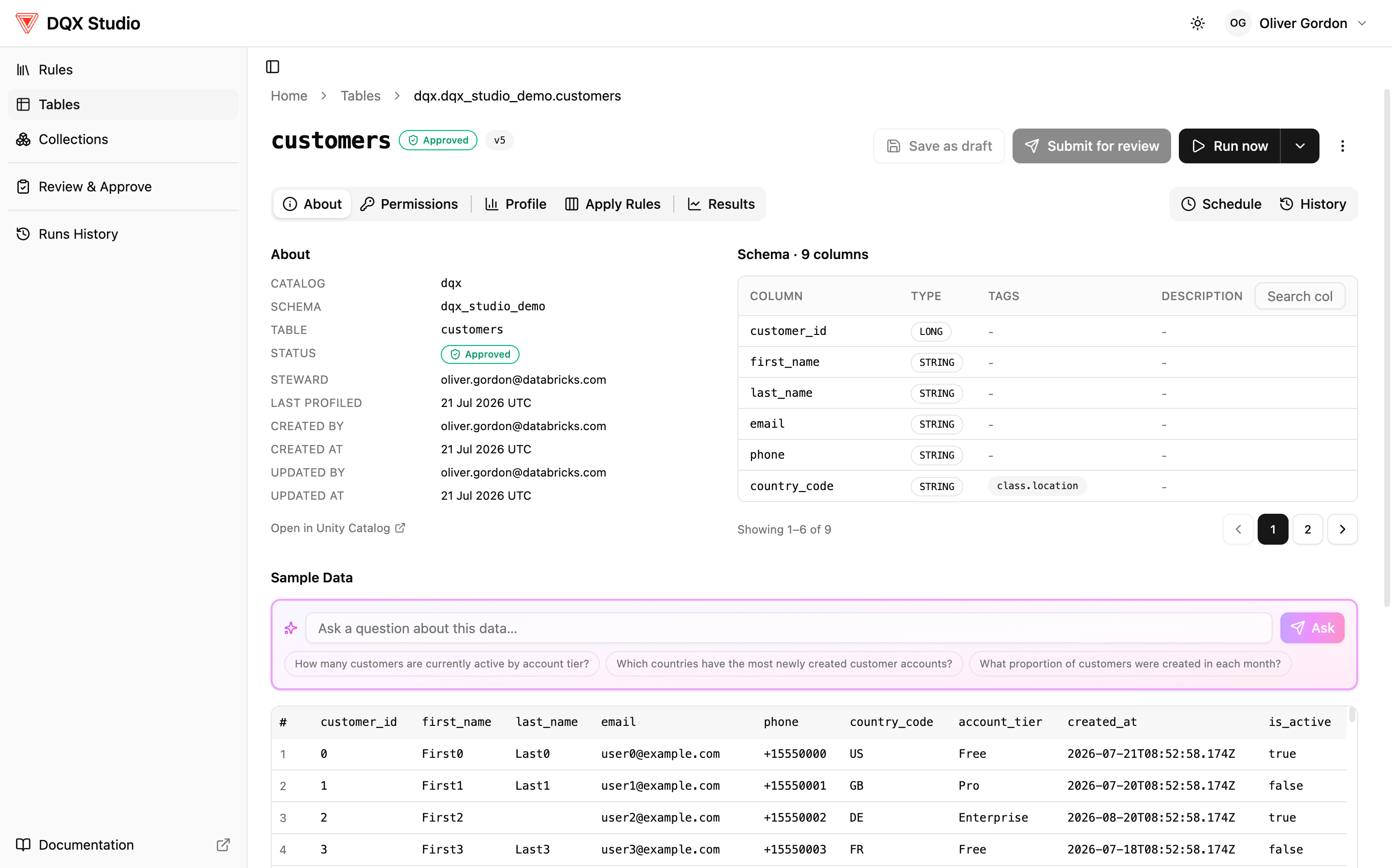
Open the Apply Rules tab on a monitored table to get started.
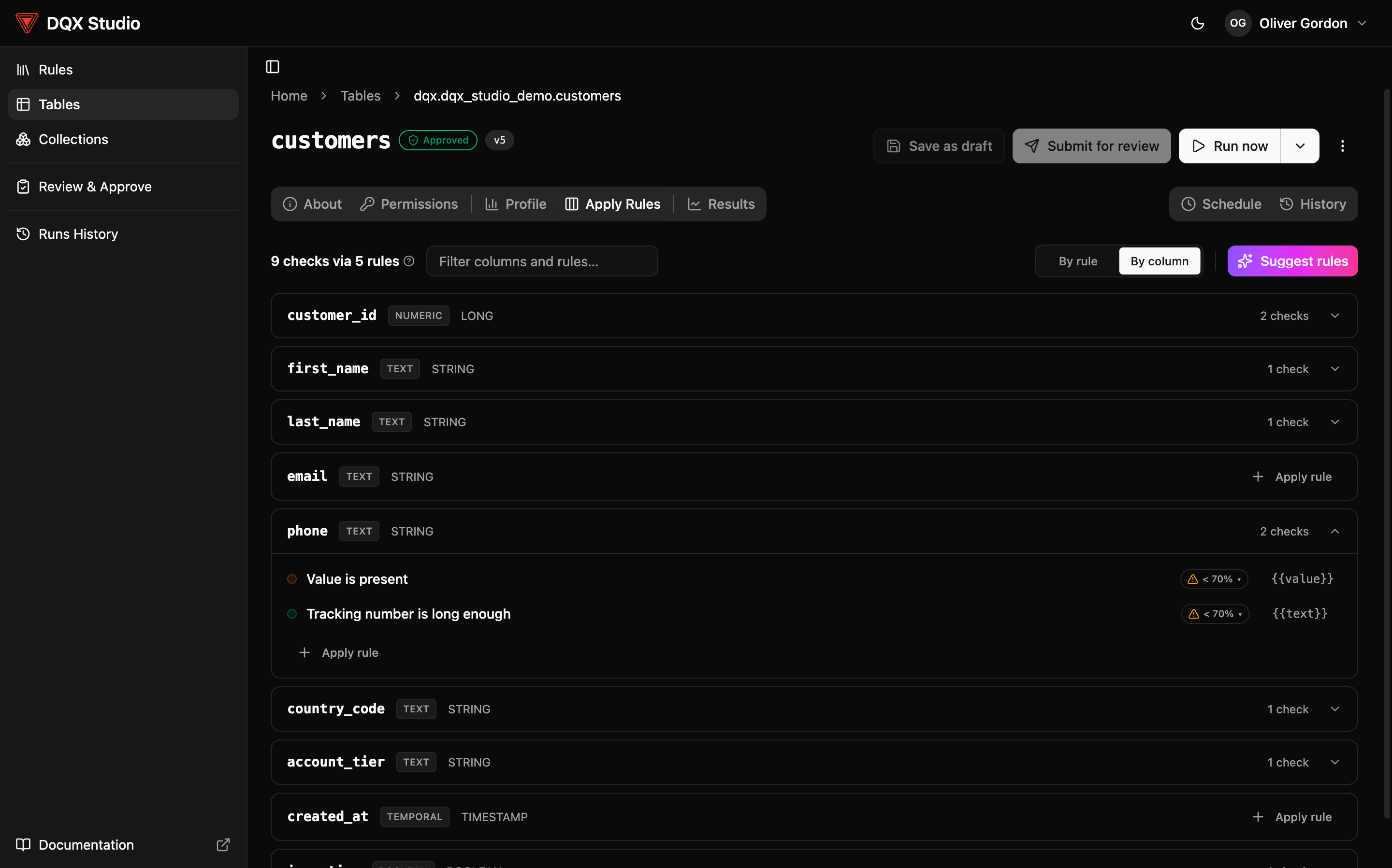
You can look at your checks two ways:
- By column — see every check attached to a given column.
- By rule — see every column a given rule is checking.
For each check you apply, you can tune it for this table without touching the underlying rule:
- Override the severity. Set how much a failure matters on this table — Low, Medium, High, or Critical. The rule carries a default severity; you can override it here. Severity is a priority for triage and reporting, not what decides pass or fail. See Severity.
- Set a pass threshold. Instead of demanding every row pass, you can require, say, 70% of rows to pass for the check to count as healthy. See Quality thresholds below.
Pin a rule version
Rules in the registry evolve — an author edits a rule and it gets a new version. Each check on your table shows a version selector (for example, Latest (v1)). You choose how that check tracks the rule:
- Latest — the check always uses the newest approved version of the rule, so improvements roll out to your table automatically.
- Pin to a version — lock the check to a specific version, so it stays exactly as it is until you deliberately move it. Pin when you want a table's behavior to stay stable regardless of registry changes.
Pinning is per check, so you can let most checks follow the latest while holding a sensitive one steady.
Quality thresholds
Real data is rarely perfect. By default a check either passes or fails, so a
column that's 88% clean fails a check that demands 100% — and may stay red forever.
A check that's always red is one people learn to ignore. A pass threshold
sets how many rows must pass for the check to count as green. Set it to < 90%
and the check needs 90% of rows to pass; a small badge on the check shows the bar.
This turns quality into a dial instead of a pass/fail cliff. Set the threshold just below where the data is today so the check goes green, then raise it — to 95%, then 98% — each time the data improves. A steadily rising threshold is a much clearer signal of progress than a check stuck on red. Thresholds are set per rule and per column, right here on the Apply Rules tab, and admins can set a sensible org-wide default that authors override per check (see Set up for your org).
A pass threshold only decides when a check is flagged as failing in the UI. It never edits or deletes rows, and it doesn't change the numeric DQ score — a check at 82% still contributes 0.82 whether or not it clears its threshold. See how the score works.
Suggest rules with AI
You don't have to map every check by hand. Select Suggest rules and DQX
Studio looks at this specific table — its columns, their names and types, and the
shape of the data — and proposes a tailored set of checks for it: an id that
should be unique, an email that should match a pattern, an amount that
shouldn't be negative, and so on.
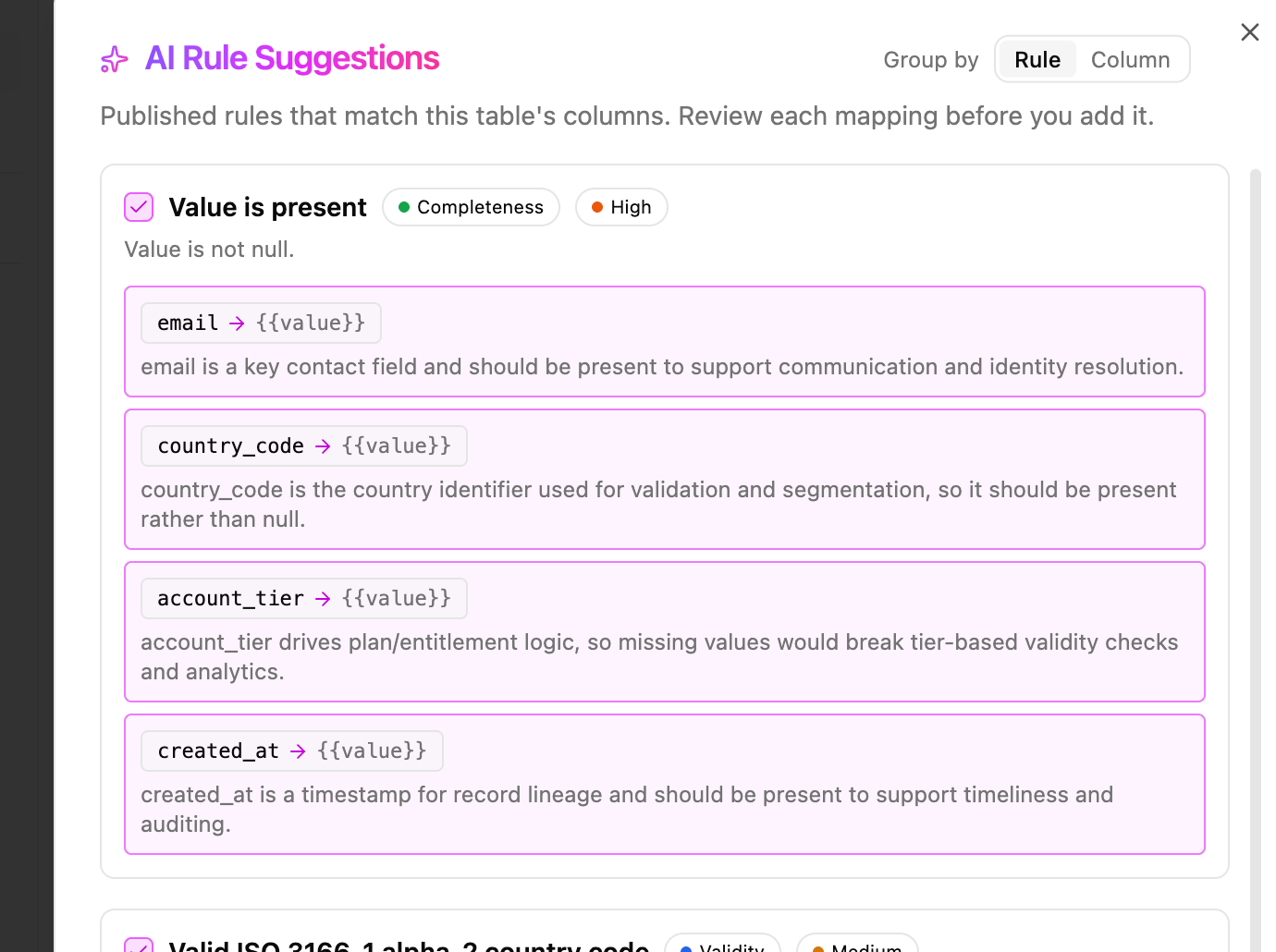
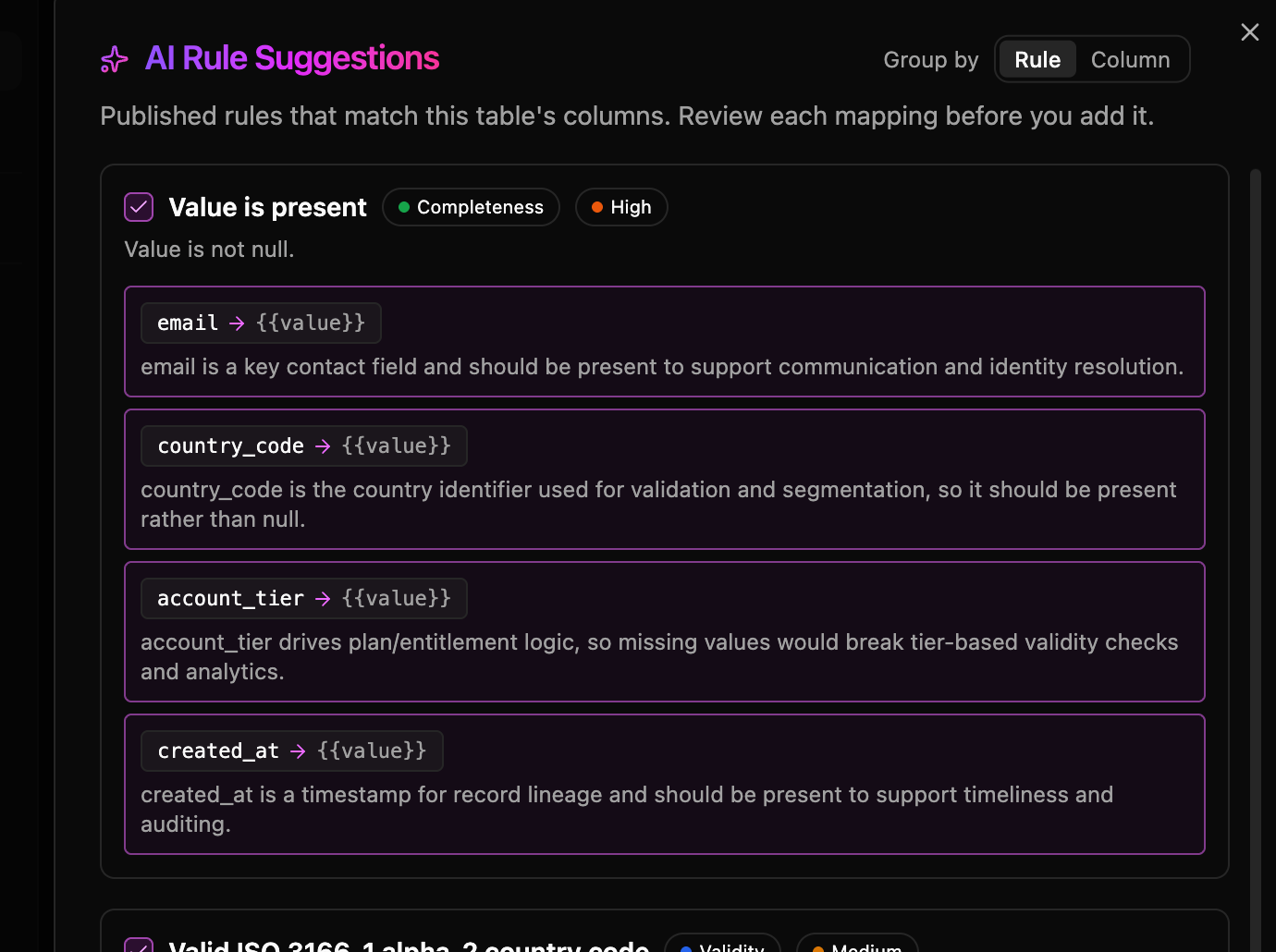
It's the fastest way to go from an unmonitored table to a sensible starting set of checks. You stay in control — review each suggestion, keep the ones that fit, drop the rest, and adjust severities or thresholds before you submit. Think of it as a knowledgeable first draft of "what should we be checking on this table?", not a decision made for you.
If a rule's column is marked with a governed tag (for example class.location),
that rule is applied automatically to any column on this table carrying the same
tag — so tagged rules land on the right columns without you mapping them by hand.
See Governed tags.
Applying rules and running checks only reads and evaluates your data. A failing check never deletes or modifies the table — the failing rows are copied to a quarantine table for triage.
Save as draft, or submit for review
When you've applied the checks you want, you can click save as a draft to keep working, or submit for review. Once your changes are approved, the table is actively monitored and its checks run on the schedule set for it.
- Learn how review and approval works in the Approval workflow.
- Learn how and when checks run in Run checks & schedule.