Create a rule
A rule captures one expectation about your data — "this column is never blank", "an amount is never negative", "a status is one of a known set". You write it once in the Rules Registry and reuse it on as many tables as you like.
This page walks through creating a rule the no-code way. It's the most common thing you'll do in DQX Studio, so it's worth reading once end to end.
You need the Rule Author role (or higher) to create rules. If you only see a read-only view, ask your admin — see Roles & permissions.
Start a new rule
Open Rules in the sidebar and click New rule. The rule editor opens on the About tab, where you describe what the rule is. You'll fill in the details here, and the logic on the Implementation tab next.
Fill in:
- Name — a short, human readable name. Say what good looks like, not what's wrong: "Email is present", not "email null check".
- Description — one line on what the rule checks and why it matters.
- Default severity — how much a failure of this rule matters: Low, Medium, High, or Critical (your organization can customize these levels). Severity is a priority for triage and reporting, not a pass/fail switch — it's the starting point, and you can override it for a specific table when you apply the rule.
- Dimension — which aspect of quality this measures (completeness, validity, accuracy, and so on). This is what lets you later report quality by category.
- Tags (optional) — labels for organizing and filtering rules. Some tags are governed tags that make a rule apply automatically wherever that kind of data appears.
Governed tags: apply a rule automatically
A governed tag is a label your organization agrees on for a kind of data —
pii, region, class.location, and so on. Governed tags are defined in
Unity Catalog, not in DQX Studio, and are the shared vocabulary you already
use to classify columns.
Instead of pointing a rule at a named column, you can point one of its columns at
a tag: on the column, click + Apply to a tag and pick from the searchable
list of Unity Catalog tags. The rule then auto-applies to any table column
carrying that tag — a rule scoped to pii lands on every pii column across your
tables, and picks up new ones the moment they're tagged. No hunting down an
email column that's called email_address on one table and contact_email on
another.
Checks that arrive this way are marked with a matched-tag chip on the table's Apply Rules tab, so you can tell they came from a governed tag rather than being mapped by hand.
Governed tags attach to a column inside a rule and drive auto-apply. They're different from the plain Tags field above, which just helps you organize and find rules. Admins manage the organization's tags under Governance.
Define what the rule checks
Switch to the Implementation tab. This is where you say what makes data pass or fail — without writing code.
Columns are placeholders, not real columns
Notice the column is written as {{column_1}} — a placeholder. Because a
rule lives in the Registry and is meant to be reused, you don't pick a real
column here. You choose the actual column later, when you
apply the rule to a table. That's how
one "is never blank" rule can protect email on one table and phone on
another.
A rule can use more than one column
A rule isn't limited to a single column. Under Columns used you can add
several placeholders — {{column_1}}, {{column_2}}, and so on — and your
condition can reference all of them. This is what lets a rule express a
relationship between columns, not just a fact about one. For example:
- A date ordering:
{{end_date}}is on or after{{start_date}}. - Conditional presence: if
{{payment_method}}iscard, then{{card_last_four}}must not be blank. - A combined uniqueness key: the pair
{{customer_id}}+{{order_date}}never appears twice. - A cross-column comparison:
{{discounted_price}}is not greater than{{list_price}}.
Just as with a single-column rule, you map each placeholder to a real column when you apply the rule to a table — so a multi-column rule stays just as reusable.
Under Condition, you build a simple sentence: IF {{column_1}} … and then
pick what must be true. There are three ways to express what makes data pass or
fail, from the simplest to the most powerful. Most rules only ever need the
first.
Describe it in plain English instead — the Generate box at the top of the editor drafts a check for you. See Generate a rule with AI below.
Simple checks
The no-code option: pick a ready-made check from a catalog, fill in a couple of values, and you're done. It covers most of what you'll want to check.
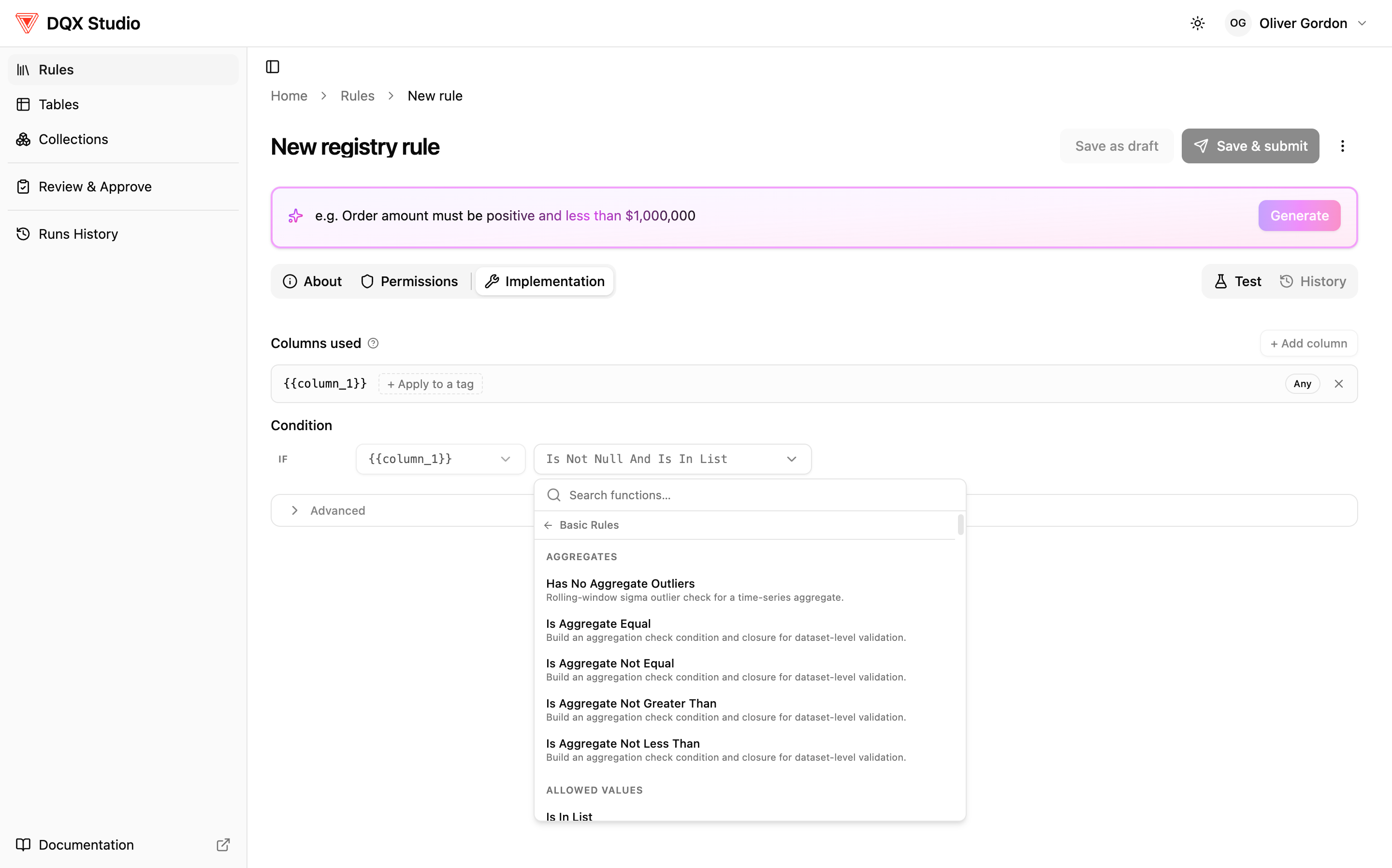
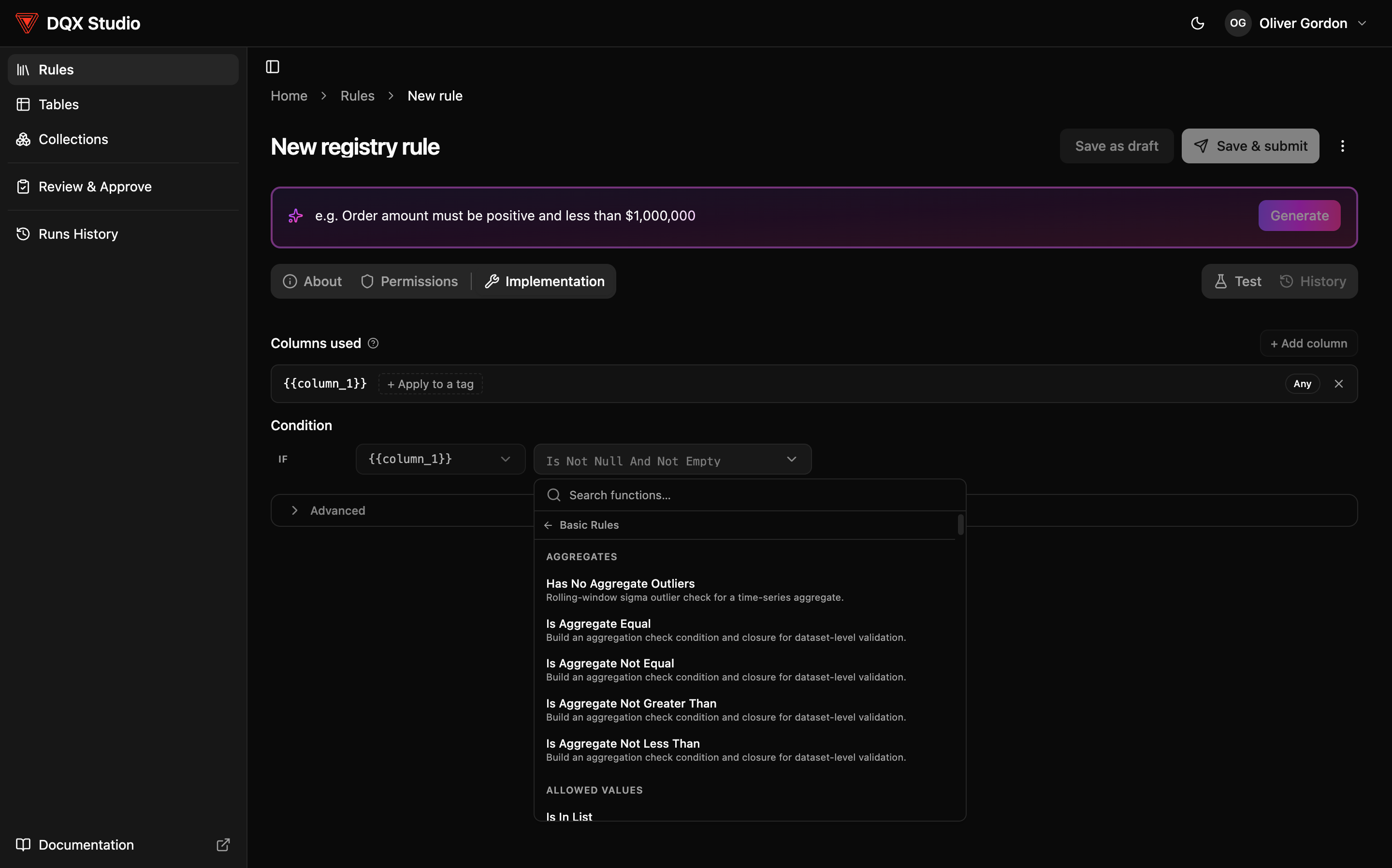
When you open the picker you'll see the built-in checks, grouped and searchable. You don't need to memorize them — but here's what's available, by what you're trying to verify:
| You want to check that… | Checks to reach for |
|---|---|
| A value is present (never blank) | is not null; is not null and not empty |
| A value is in an allowed set | is in list; is not in list |
| A number or date is in range | is in range; is not less than / is not greater than; is not negative |
A value matches a format (email, phone, an ID shaped like NNN-NN-NNNN) | matches a pattern; is a valid date / timestamp |
| There are no unwanted duplicates | is unique — across one column or several columns combined |
| Dates make sense for "now" | a timestamp is not in the future; a date is recent enough |
| A group of rows as a whole behaves | aggregate checks (an average / sum / count stays within bounds, overall or per group); rolling-window outlier checks |
| Data lines up with another table | a value must exist in a reference table (foreign-key style); the table's shape matches an expected schema |
A "pattern" (regular expression) is just a way to describe the shape of text — for example "three digits, a dash, two digits, a dash, four digits" for a Social Security number. You describe the shape; you don't need to be an expert.
For the exact, function-by-function reference — every built-in check, its precise behavior, and the arguments it accepts — see the Quality checks reference in DQX Core.
Condition builder
The condition builder lets you chain several checks together with AND and
OR to express real-world rules that a single check can't. You build each step
the same visual way, then combine them.
For example:
{{email}}is not blank AND matches an email pattern.{{status}}isshippedOR{{status}}isdelivered.{{discount}}is between 0 and 100 AND{{amount}}is not negative.- If
{{payment_method}}iscard, then{{card_last_four}}is present AND is four digits.
Because a condition built this way can reference more than one column and combine several tests, it's the way to capture nuanced expectations without dropping into SQL.
The condition builder also has an Advanced box for the less common cases. Expand it when your rule needs more than a plain condition:
- Filter — apply the rule to only some rows. A filter is a condition that
decides which rows the check runs on, so you can say "only check
amounton rows wherestatusisactive" or "only rows from this year". Rows that don't match the filter are skipped rather than failed. - Join / reference another table — check a value against a different table.
This is how referential checks work — for example "every
product_idin orders must exist in the products table". You point at the reference table and the columns to match on, and DQX Studio compares against it when the rule runs. See Cross-table rules for the full picture (built-in check, visual join, and SQL).
Most rules never need the Advanced box — reach for it when a rule has to target a subset of rows or look something up in another table.
Custom SQL
For advanced users: when even the condition builder can't express what you need, choose SQL under Custom condition. You can write either:
- a plain condition over placeholders (always row-level), or
- a full query (
SELECT … FROM {{input_view}} …), where you set Applies to to Row-level or Dataset-level.
This is also the path for complex
cross-table comparisons. The query
must be a single read-only SELECT — DQX Studio rejects anything that writes or
runs multiple statements.
Cross-table rules
Some checks span two (or more) tables — for example "every order points at a real customer", or "a line item's price matches the catalogue".
There are three ways to write one:
- A built-in referential check — "value exists in a reference table" (foreign-key style). Best for the common case.
- The visual builder's Advanced → Joins — when the lookup is part of a larger condition.
- Custom SQL — for comparisons or aggregates the builder can't express.
Read the monitored table with
FROM {{input_view}}, name joined tables with a fully qualifiedcatalog.schema.table, and (for a full query) return a booleanconditioncolumn whereTRUEmeans fail. You can also write a boolean expression followed byJOINclauses and let Studio wrap it.
Step-by-step examples (including row-level vs dataset-level SQL, permissions, and common pitfalls) live on Cross-table rules. For when to use Row-level vs Dataset-level, see Row-level vs dataset-level rules.
Generate a rule with AI
If you'd rather describe what you want than build it by hand, use the Generate box at the top of the editor. Type the expectation in plain English and DQX Studio proposes a matching check with its settings filled in. Good prompts are specific:
order amount must be positive and under $1,000,000email should look like a valid email addressstatus must be one of placed, shipped, delivered, cancelledsignup date can't be in the futurecard last four must be present when payment method is card
The app reads your description, picks a matching rule (or chains a few together), and fills in the details — the allowed values, the range, the pattern, and so on.
You can also ask for a specific type of rule rather than only describing the
data expectation. Say you want a uniqueness check, a range check, or a
pattern/regex check, and the assistant builds that kind of rule — for example
make a uniqueness check on customer id or add a regex check for a UK postcode.
A generated rule is a starting point, not a finished rule. Read what the app proposed, adjust anything that isn't quite right, and run the Test tab before saving — AI can misread a description or pick settings you didn't intend. Once saved, a generated rule follows the same review, approval, and audit path as any other rule.
Test it before you save
Open the Test tab to try the rule against a small sample of real data before you commit to it. A test run shows how many rows would pass or fail, and lets you see example rows that don't pass — so you can confirm the rule does what you meant.
Testing changes nothing: it reads a sample, evaluates the rule, and persists nothing. It's the safest way to catch a rule that's too strict or too loose before it goes live.
You don't have to hand-write test cases either. DQX Studio can generate tests for you with AI — it looks at what the rule checks and produces example rows that should pass and fail, so you can confirm the rule behaves the way you meant without inventing sample data yourself.
Save and submit
When you're happy:
- Save as draft keeps the rule private to you while you keep working on it.
- Save & submit sends it for review. An approver checks it and, once approved, the rule becomes active and available to apply to tables.
Unless you're an approver or admin, you can't approve your own rule. This "four-eyes" step means someone other than the author signs off before a rule affects any run — a simple guardrail against mistakes. See the Approval workflow.
What happens next
An approved rule sits in the Registry, ready to use. It doesn't check anything on its own yet — the next step is to apply it to a table, which turns your reusable rule into a live check.
Other ways to create rules
You can also import rules you already have, from DQX YAML or an Open Data Contract. And if you're not sure what to check yet, profiling scans a table and suggests candidate rules from the data.