Monitor your tables
This section is for stewards who want to put real, ongoing data-quality checks on a table. It's where the reusable rules in your Rules Registry stop being definitions and start doing work.
When you apply rules to a Unity Catalog table, that table becomes a monitored table — the single source of truth for that table's data quality. Everything about how healthy the table is, which checks run on it, and how it's trended over time lives in one place.
Open a table to monitor
- Go to Tables.
- Select Monitor a table.
- Browse Unity Catalog: pick a catalog > schema > table. You only see catalogs, schemas, and tables you already have access to — if a table you expect isn't listed, you are missing a permission.
- The table detail opens.
Adding many tables at once
Need to bring dozens of tables under monitoring? Use bulk-register to add many tables in one step instead of opening them one at a time.
The table detail
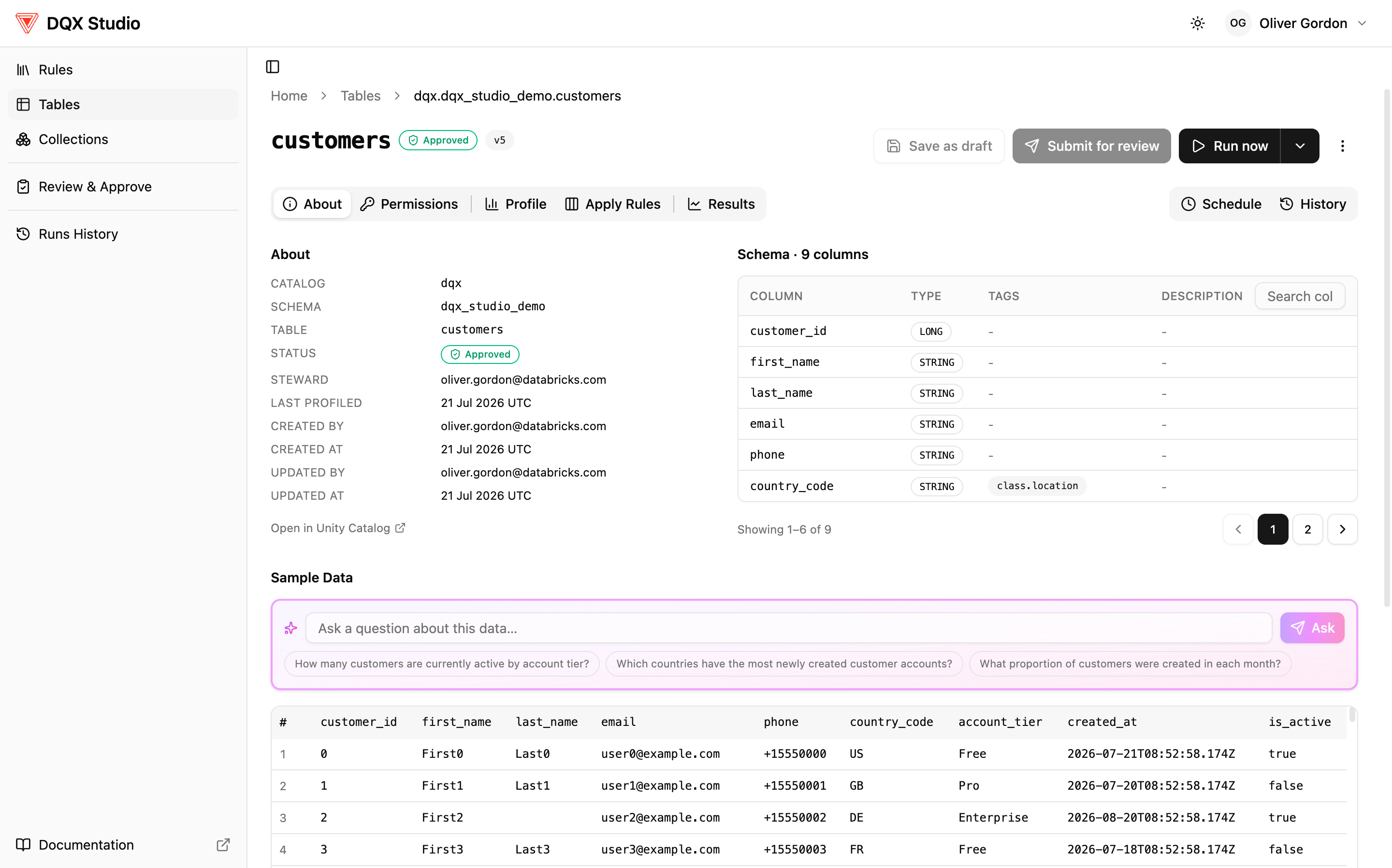
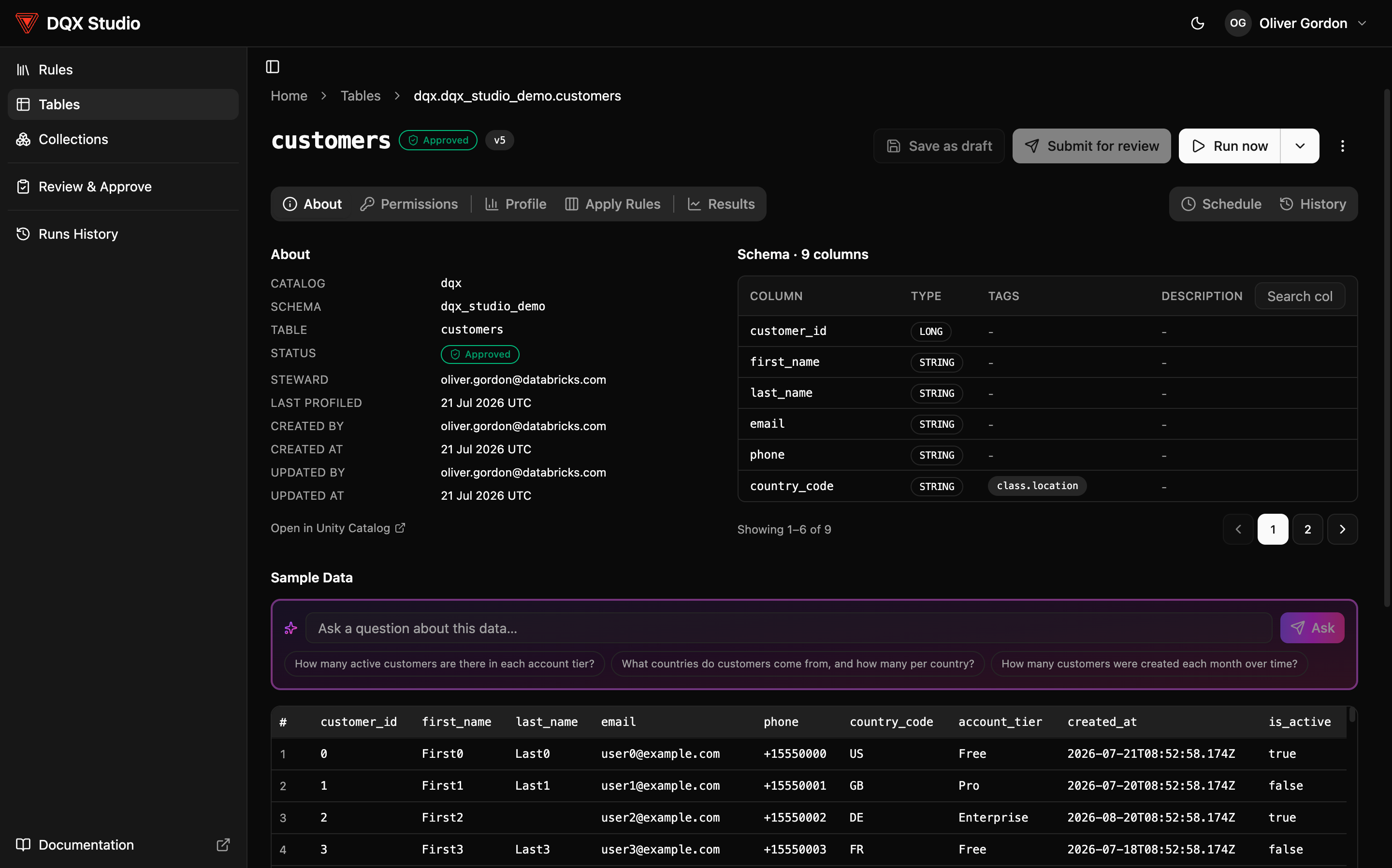
A monitored table has four tabs:
- About — the table's schema, a preview of sample data, and an "ask a question" box for quick natural-language questions about the data.
- Apply Rules — where you turn rules into live checks. See Assign rules.
- Results — the table's data-quality score, its trend over time, and a breakdown you can drill down to the failing rows. See Review results.
- Profile — a scan of the table's shape that can suggest candidate rules. See Profiling.
In this section
- Assign rules — attach rules from your registry to a table's columns, tune them per table, and set quality thresholds.
- Profiling — scan a table and let the DQX suggest candidate rules.
- Collections — group related tables into a data product or domain and see quality across all of them at once.
- Run checks & schedule — run checks on demand or on a schedule, and see past runs.