Collections (data products)
This page is for stewards who own a data product or domain — a set of related tables that people rely on together. A collection groups those tables so you can see, run, and report on their quality as a single unit.
A collection is more than a place to schedule runs. Its real value is a single view of quality across related tables: the tables that feed one Genie space, one dashboard, or one published data product. Instead of checking each table on its own, you open the collection and see how the whole product is doing at once.
Begin by monitoring a table or two. When you have a few related tables you want to run and report on together, group them into a collection. Collections are totally optional.
A concrete example
Say your organization publishes a Customer 360 data product — a combined
customer view backed by three tables: customers, orders, and payments.
Each is a monitored table with its own rules. On their own, you'd check three
separate scores.
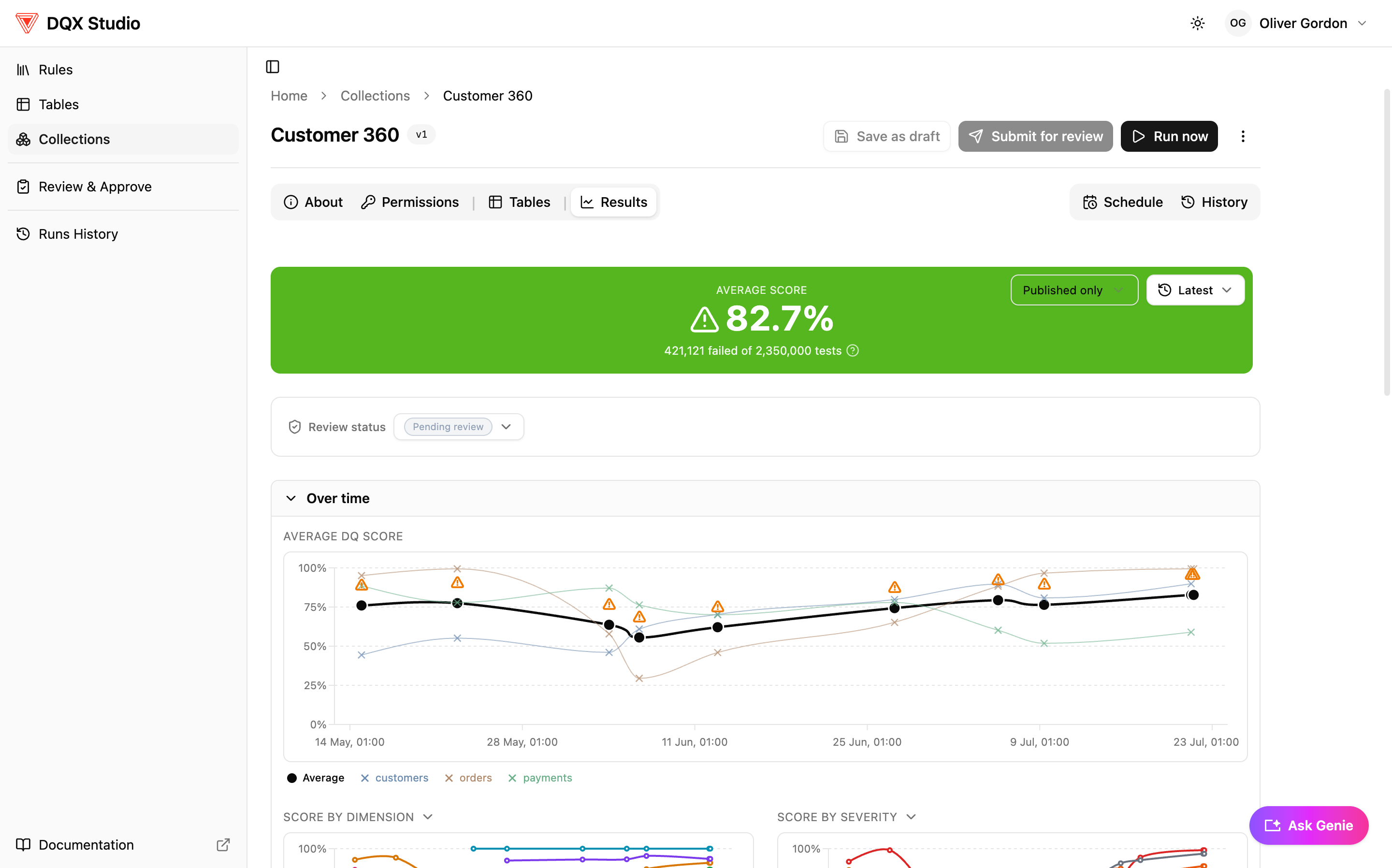
Group them into a Customer 360 collection and you get one Results view: the combined quality of the data behind that product, plus the ability to run all three together and drill into whichever table is dragging the score down.
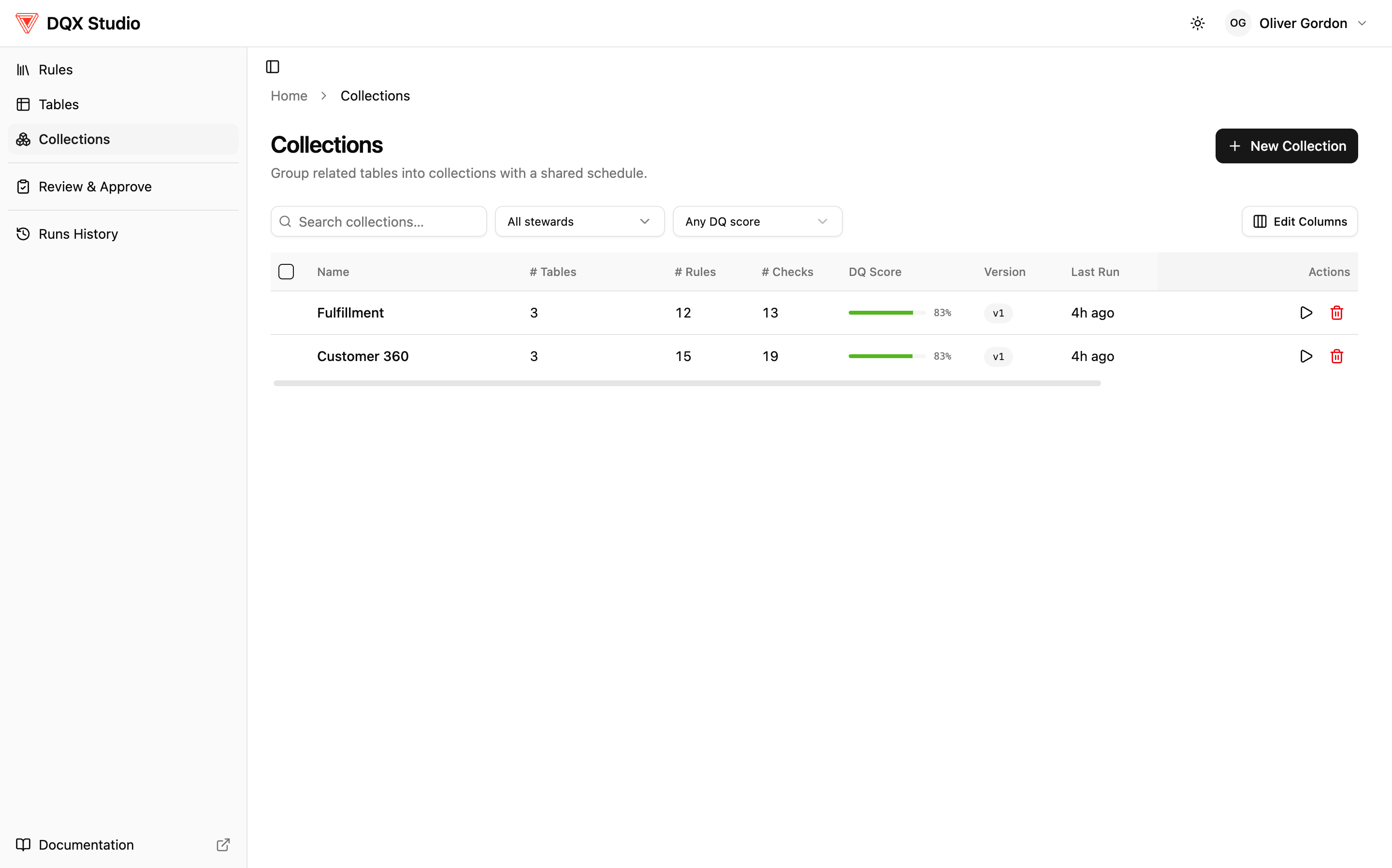
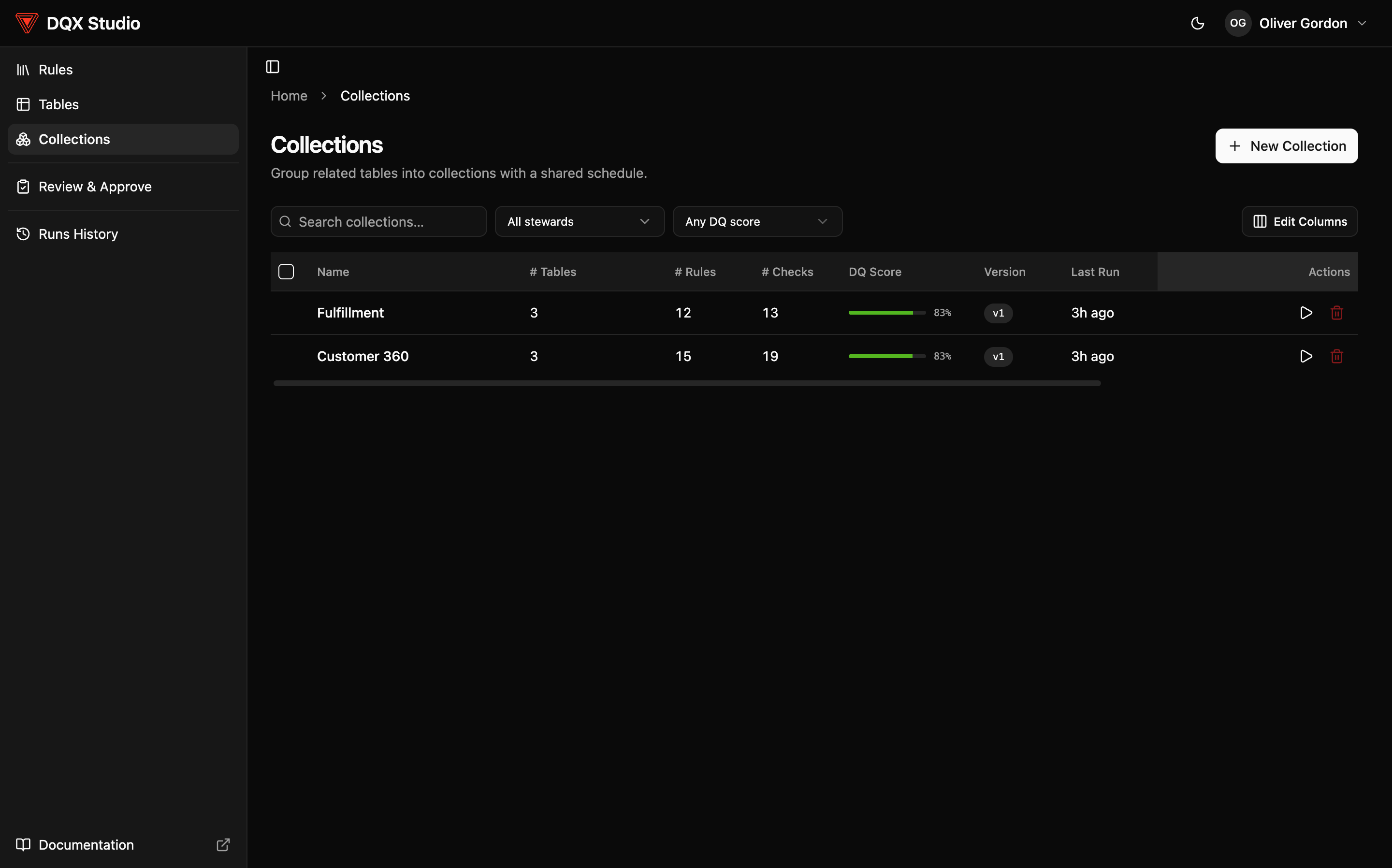
Create a collection
- Go to Collections.
- Select New collection.
- Give it a name and a short description that says what data product it represents — for example, "Customer, order and payment data for the customer view."
- Add the related monitored tables as members. You add tables you already monitor, so their rules and checks come along automatically.
A collection is built from tables you're already monitoring. If a table isn't listed when you add members, monitor it first — see Monitor a table.
View combined Results
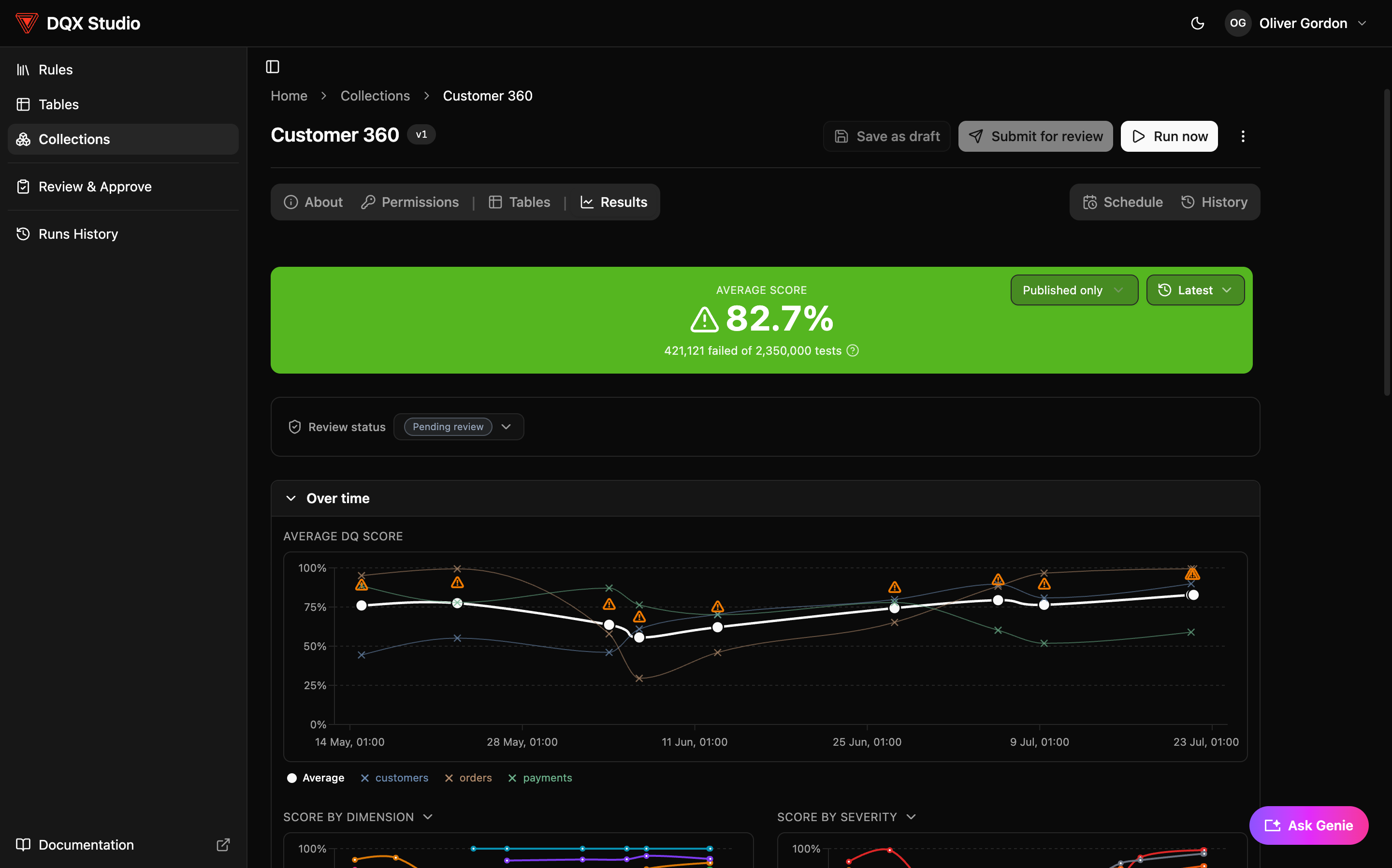
Open the collection's Results tab to see quality across every member table at once:
- A combined score — one data-quality score for the whole product, rolled up from its member tables.
- Trend over time — a multi-series chart so you can see each member's quality move together (or apart) across runs.
- Breakdowns — score by dimension (completeness, validity, and so on), by severity (Low / Medium / High / Critical), by rule, and by member table.
- Drill-down — select a member table to open its own Results and follow the score down to the failing rows.
For how the score is calculated and how to read the breakdowns, see Review results.
The Results view has an Ask Genie box. Ask questions about the collection's quality in plain English — for example, "which table failed the most checks last week?" — and get an answer without writing any SQL.
Run the collection
You can run every member table's checks together, on demand or on a schedule.
- Run now — trigger a run of the whole collection whenever you want, so all members are evaluated against the same point in time.
- On a schedule — set the collection to run hourly, daily, or weekly, or on a custom cron schedule for finer control. You can pause, resume, or delete a schedule at any time.
Running a collection requires the Rule Author (or Admin) role and Execute permission on the collection. For the full picture of how runs work, see Run checks & schedule.
Publish a stable version
Approving a collection publishes a version of it: a stable snapshot of its member tables and the rules applied to them. That version is what runs on the schedule, so your reporting stays steady even while you draft changes.
Changes to a collection go through the same review as everything else — see the Approval workflow.