DQX Studio (No-Code UI)
DQX Studio is the web application for authoring, reviewing, running, and monitoring data quality rules without writing code. It runs as a Databricks App inside your workspace and exposes all the core DQX capabilities — profiling, rule authoring, approval workflows, scheduled runs, and results tracking — through a browser.
DQX Studio is the recommended entry point for:
- Data stewards and analysts who want to manage and run quality rules without code-level integration (see post-factum monitoring).
- Teams that need an approval workflow before rules go live.
- Any user who prefers to browse Unity Catalog and author checks through a UI.
For code-level integration into pipelines or notebooks, see the Programmatic approach.
Key concepts
Before opening DQX Studio, it helps to understand a few terms used across the UI.
| Term | Meaning |
|---|---|
| Rule | A single data quality check — a named condition evaluated against a single or multiple tables and columns. Rules have a severity (error or warning) and optional labels. |
| Draft | A rule that has been authored but not yet approved. Drafts are editable and do not run on schedules. |
| Active rule | An approved rule. Only active rules are executed by runs and schedules. |
| Run | A single execution of one or more active rules against their target tables. Runs produce pass/fail results and optional metrics. |
| Schedule | A cadence (e.g. hourly, daily, weekly) that automatically submits runs for a set of rules. |
| Label | A free-form tag (such as pii, gold, finance) attached to rules for organisation and filtering. |
Accessing DQX Studio
Your workspace administrator deploys DQX Studio and shares its URL with you. Once deployed, open it in a browser — authentication uses your Databricks identity, so no separate login is required.
If DQX Studio isn't available in your workspace yet, ask your admin to follow the installation instructions.
DQX Studio browses Unity Catalog using your own identity (on-behalf-of). You will only see catalogs, schemas, tables, and columns that you have been granted access to. Profiling and dry-runs are also executed on your behalf, ensuring the studio can never read data from tables you don’t have permission to access.
Roles and permissions
Every user has a primary role that governs what they can do, plus an optional runner privilege that is independent of the primary role.
| Primary role | Typical audience | Can do |
|---|---|---|
| Viewer (default) | Anyone with access | Browse active rules, drafts, runs, and run history. Read-only. |
| Rule author | Data engineers, analysts | Everything a viewer can, plus create, edit, and delete their own draft rules. |
| Rule approver | Tech leads, data stewards | Everything an author can, plus approve or reject drafts from anyone. |
| Admin | Platform owners | Everything, plus manage role mappings, labels, timezone, and studio settings. |
The Runner privilege is additive — it adds the ability to trigger manual runs and manage schedules on top of any primary role. Admins implicitly have it; other users need their admin to grant it.
Open the Profile page (top-right user menu) at any time to see your primary role, whether the Runner privilege is granted, and which groups you belong to that mapped you to those roles.
Profile preferences
The Profile page (top-right user menu) is also where you manage personal preferences that affect only your own session.
Language
DQX Studio is localized. Pick your preferred language from the Preferences card on the Profile page; the change applies immediately across every page in the studio.
| Language | Code |
|---|---|
| English (default) | en |
| Português (Brasil) | pt-BR |
| Italiano | it |
| Español | es |
Your selection is stored in the browser's local storage, so it persists across reloads and is reapplied on your next visit. On first load — when no preference has been saved yet — the studio detects your browser language and falls back to English when none of the supported languages matches.
Language is a personal preference — it does not change the language for other users, and it does not affect rule names, labels, comments, or data stored in workspace tables.
Most non-English translations were produced with the help of AI and have not yet been fully reviewed by native speakers. They may contain inaccuracies, awkward phrasing, or missing context. If you spot a problem, please open an issue or contribute a fix — see the contributing guide.
The home page
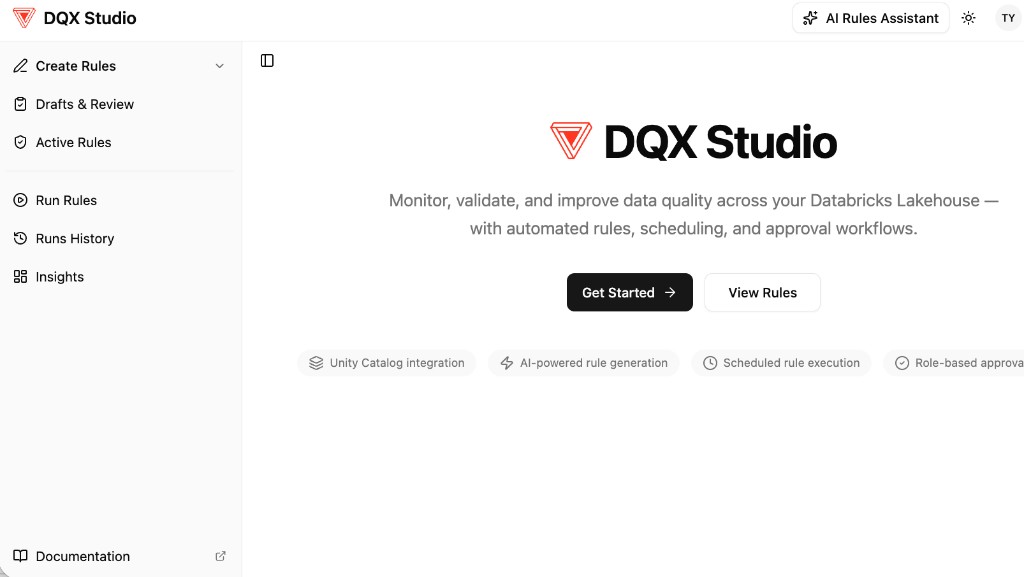
The landing page is a quick overview with two primary calls to action:
- Get Started — jumps into the rule creation flow.
- View Rules — opens the active rules library.
Use the sidebar to navigate between functional areas. Menu items hide automatically if your role does not grant access to them (for example, Run Rules only appears if you have the Runner privilege).
Creating rules
Expand Create Rules in the sidebar to pick the authoring flow that best matches what you want to express.
Single-table rules
Use this flow when your check operates on the columns of one table — for example, "this column must not be null", "this column must be unique", or "values must be within a list".
- Browse Unity Catalog and pick a target table.
- Choose a column (or leave it empty for whole-row or custom checks).
- Pick a check from the catalog of built-in DQX checks (such as
is_not_null,is_in_list,is_unique,regex_match,is_in_range). - Fill in any arguments the check needs.
- Set the severity — error (fails the run) or warning (reports but doesn't fail).
- Add labels if you want to group the rule (for example
pii,finance,critical). - Save the rule as a draft.
For a complete list of built-in checks and their arguments, see Quality Checks Reference.
Schema and reference-table checks
Checks that compare the target table against a reference — has_valid_schema (schema validation) and foreign_key — are authored from the same single-table editor. Pick the check from the catalog and the editor reveals the extra fields it needs; there is no separate schema-validation page, so everything you build for one table lives in one place.
For has_valid_schema you pin the expected shape of the table — its columns, their order, and their data types — and DQX flags drift the next time the table runs through a check:
- Expected schema — supply it either as a Spark DDL string (e.g.
id BIGINT, email STRING) or by pointing at a reference table whose schema is the contract (loaded at run time). The two are mutually exclusive. In DDL mode, click Snapshot from target table to pre-fill the editor with the table's current shape — handy for "canonical/golden" tables you want to freeze. - Match mode — Compatible (every expected column must exist with a type-compatible counterpart; extra columns and minor type widenings such as
int → longpass) or Strict (same columns, same order, same exact types — anything different fails). - Column subset (optional) — limit the check with Validate only these columns or ignore noise with Ignore these columns. In DDL mode the expected schema is auto-trimmed to match your subset so both sides of the comparison stay aligned; in reference-table mode the subset only filters the actual side, and the studio warns you when that mismatch could surprise you.
As with any rule, run a dry run against a small row sample to confirm the check behaves as expected before saving.
- Contracts — keep producers and consumers honest by failing the run the moment a column is renamed, dropped, or retyped.
- Onboarding/migrations — snapshot the source table's schema before a migration; pin the target's expected schema after; let the rule prove the move was clean.
- Combining with row-level checks — schema validation answers "does the shape match?" while
is_not_null/is_in_list/regex_matchanswer "does the content match?". You usually want both.
Cross-table rules
Use this flow when a check needs to compare data across multiple tables — for example, referential integrity ("every order_id must exist in orders"), reconciliation ("sum of amount in payments equals total in invoices"), or any custom SQL condition.
- Give the rule a name and description.
- Write a SQL query that returns rows violating the check (or zero rows when everything is healthy).
- Set severity and labels.
- Save the rule as a draft.
- The SQL is executed on your behalf using your Databricks identity — it can reference any tables you have access to.
- Keep checks focused: one rule per invariant is easier to triage when it fails.
- Prefer fully qualified table names (
catalog.schema.table) for clarity.
Profile and generate
If you're starting from scratch and don't yet know what rules to write, profiling a table is the fastest way to get a draft set.
- Pick a catalog, schema, and table in the browser.
- Click Run profiler.
- Wait for the job to complete — profiling runs as a serverless Databricks Job and uses your own table permissions, so no elevated access is required.
- Review the Profiler & Generate results modal. The studio shows:
- Profiler statistics (row counts, null rates, distinct counts, min/max, percentiles, top values, regex fits) so you can sanity-check the suggestions against the underlying data shape.
- Candidate rules derived from those statistics, ready to keep or discard.
- Keep the ones you like and discard the rest. Everything you keep is saved as drafts for review.
See Data Profiling for the full list of statistics and candidate check types the profiler produces.
DQX Studio also supports AI-assisted rule suggestions — you describe the business context in natural language and the studio proposes relevant checks. See AI-Assisted Generation for the underlying capabilities.
Import rules
The Import rules page is the bulk-entry point for rules that already exist outside DQX Studio. Two tabs cover the two supported sources, and both land as drafts so you can review before they go live.
From DQX YAML
If you already maintain rules in DQX's native YAML/JSON, paste them in or upload a file. The studio parses, validates, and previews the checks in a table before you save. You can also dry-run the imported set against any table you have access to. The accepted formats are the same as the programmatic storage formats — see Quality Checks Definition for the schema.
From data contract
If your data product is described by an Open Data Contract Standard (ODCS) v3 contract, upload or paste it and DQX Studio will derive a full set of checks (schema validation, predefined constraints, and any explicit DQX rules embedded in the contract's quality section). For each ODCS schema you pick the Unity Catalog table the rules should target; the studio also validates that the columns the contract references actually exist on the chosen table and grays out the save buttons until the mismatch is resolved.
This is the UI entry point for the same generation pipeline documented in Data Contract Quality Rules Generation — pick whichever fits your workflow better.
The old standalone /rules/from-contract URL still works; it redirects to the Import rules page with the Data contract tab pre-selected so links shared earlier keep landing in the right place.
Dry-run before committing
Every rule flow — single-table (including schema and reference-table checks), cross-table SQL, contract import, and YAML import — exposes a Dry run affordance that evaluates the check against a small sample of the target table without persisting anything to run history. Use it to sanity-check that the rule behaves as expected before submitting it for approval. Dry-run results show the pass / error / warning counts, a per-check breakdown, and up to ten sample violating rows.
Reviewing and approving drafts
Drafts live on the Drafts & Review page. The workflow depends on your role:
- Authors see their drafts and can edit, delete, or submit them for approval. They cannot approve their own drafts unless they are admins or approvers.
- Approvers and admins see all drafts across the workspace. They can approve or reject each one with an optional comment.
Approved drafts disappear from this page and show up on Active Rules. Rejected drafts remain visible so the author can edit and resubmit.
By design, a draft author who does not also hold approval rights cannot approve their own draft. This enforces a minimum of two people touching every rule before it becomes active — reducing accidental outages caused by a single contributor. Admins and approvers, who already hold approval rights for the workspace, are exempt and can approve drafts they authored themselves.
Browsing active rules
The Active Rules page lists every approved rule grouped by target table. Schema-validation and other reference-table checks (has_valid_schema, foreign_key) group under their target table alongside the rest of that table's rules — they target a single table, so they are not shown under the Cross-table rules group. Only cross-table SQL checks, which aren't tied to one table, live under that group. The Edit / View action opens the editor that matches the group: the single-table editor for a real table (which loads all of that table's checks, schema validation included) and the SQL editor for a cross-table rule.
From here you can:
- Filter by catalog, schema, table, or label.
- Expand any rule to see its definition, labels, author, approval history, and comments.
- Download one or more rules as YAML — useful for version control or sharing with another environment.
- Delete a rule (admins and approvers only). Deleted rules are removed from all schedules.
Running rules
DQX Studio executes rules in two ways:
- Manual runs — you trigger a one-off run on demand.
- Scheduled runs — DQX Studio triggers runs automatically on a cadence you configure.
Both are managed from the Run Rules page, which is visible to users with the Runner privilege (admins are implicit runners).
Manual runs
- Open the Run Rules page.
- Pick the rules you want to run — filter by catalog, schema, label, or text to select a coherent set. Single-table rules — including schema-validation and reference-table checks — are grouped by their target table; only cross-table SQL checks live under the Cross-table rules group.
- Choose how many sample rows the runner should evaluate.
- Click Run selected to submit. DQX Studio creates a Databricks Job run per table and shows a progress indicator.
You can leave the page while a run is in flight — it will continue in the background and surface in Runs History when it finishes. If any table fails to submit (missing permissions, malformed rule, etc.), the failure banner now lists the per-table reason inline so you can self-diagnose without digging through logs.
Scheduled runs
Users with Runner privilege can put any set of active rules on a schedule so they execute automatically.
- From Run Rules, click New schedule.
- Pick the rules and targets.
- Choose a cadence — hourly, daily at a specific time, weekly on selected days, or a custom cron expression.
- Save. DQX Studio now triggers runs automatically on that cadence.
Schedules survive restarts and deduplicate — if a scheduled run is still in flight when the next tick arrives, the studio will not double-submit.
All schedule times are interpreted in the timezone configured on the Configuration page. Ask your admin to set this to your team's primary timezone before creating schedules.
Pausing, editing, and deleting schedules
The Schedules tab on the Run Rules page shows every configured schedule with pause and delete icons directly in the row — no need to dive into the editor first:
- Pause a schedule to stop it firing without losing its configuration. Click again to resume.
- Delete a schedule when you no longer need it. Past run history and the approved rules themselves are untouched — only the schedule entry is removed.
- Edit a schedule by opening the editor; saving immediately re-computes the next fire time, so there's no need to delete and recreate.
Runs history
The Runs History page is read-only and visible to everyone. It shows every run DQX Studio has executed, sorted by most recent first.
For each run you can see:
- When it started and how long it took.
- Whether it was triggered manually or by a schedule (and which schedule).
- Which rules it covered, with the error / warning counts and ratios for each check (the table-level summary uses the same ratio bar, so you can compare a single check against the whole table at a glance).
- A drill-in to row-level failures: click a failed check name and the quarantine sample is filtered to just the rows that failed that specific check, making triage a one-click action instead of a manual scan.
- A comment thread for the run — the Add comment button sits on the left of the editor so reviewers can leave notes without losing their place.
Use this view to spot regressions, audit rule behaviour over time, and share results with stakeholders. For aggregated, cross-table monitoring of pass/fail trends and quality KPIs, complement Runs History with the Quality Dashboard.
Configuration (admin only)
The Configuration page is where admins manage DQX Studio-level settings that affect all DQX Studio users.
| Setting | What it controls |
|---|---|
| Timezone | The timezone used to interpret and display all schedule times and run timestamps. |
| Labels | Labels users can attach to rules. Defining labels centrally keeps tagging consistent. |
| Role mappings | Which workspace groups map to which DQX roles (author, approver, runner, admin). Every change is audited — the studio keeps a full history of role-mapping edits (who, when, before/after) so you can answer "who granted this group runner privilege?" without grepping logs. |
Changes take effect immediately for all users — no restart is required.
Getting help
- In-app docs link: every page in DQX Studio links to this guide from the bottom of the sidebar — open it any time without leaving the app.
- Docs: you are reading them. Start at the User Guide or Quality Checks Reference when you need to know what a specific check does.
- Issues and discussions: file an issue or ask a question on GitHub.
- Contributing: want to fix something or suggest a feature? See the contributing guide.