5-Minute Tutorial
This tutorial walks you through creating a real cost estimate from scratch. By the end, you will have a complete estimate for a data platform with two workloads on AWS, ready to export.
Video walkthrough
End-to-end tutorial: create an estimate, add Lakeflow Jobs and Databricks SQL workloads, review costs, ask the AI assistant, and export to Excel.
What we are building
A cost estimate for a mid-size data platform running on AWS us-east-1 with the Premium tier:
| Workload | Purpose | Configuration |
|---|---|---|
| ETL Pipeline | Nightly batch ingestion | Lakeflow Jobs, 4 workers, runs 2x/day for 45 min |
| Analytics Warehouse | Business intelligence queries | Databricks SQL Serverless, Small size, 10 hrs/day |
Step 1: Create the estimate
- Open Lakemeter in your browser. You are automatically signed in via Databricks SSO.
- On the home page, click New Estimate.
- Fill in the form:
- Estimate Name:
Q4 Data Platform - AWS - Cloud:
AWS - Region:
us-east-1 - Pricing Tier:
Premium
- Estimate Name:
- Click Create.
You land on the Calculator page -- an empty estimate ready for workloads.
 Animated: creating a new estimate — fill in name, cloud, region, and tier, then click Create.
Step 2: Add the ETL Pipeline workload (Lakeflow Jobs)
-
Click Add Workload.
-
Set Workload Type to Lakeflow Jobs.
-
Set Workload Name to
ETL Pipeline. -
Leave Serverless toggled off (we want classic compute for this example).
-
Configure compute (in the Driver Node and Worker Nodes cards):
- Driver Instance Type:
m5d.xlarge - Worker Instance Type:
m5d.xlarge - Worker Count:
4 - Photon: Off (leave unchecked)
- Driver Instance Type:
-
Configure pricing (within each card):
- Driver Pricing Tier: On-Demand (the default)
- Worker Pricing Tier: Spot Instances (the default)
-
Configure usage:
- Runs Per Day:
2 - Avg Runtime (minutes):
45 - Days Per Month:
30(the default is 22 business days — change it to 30 since this ETL runs every day including weekends)
- Runs Per Day:
-
Click Save.
What the numbers mean: This job runs twice daily for 45 minutes, so it uses 1.5 hours/day x 30 days = 45 compute-hours/month. Lakemeter derives DBU consumption from the configured driver and workers, applies the rate for the estimate context, and adds the selected VM pricing assumptions.
Step 3: Add the Analytics Warehouse workload (Databricks SQL)
-
Click Add Workload again.
-
Set Workload Type to Databricks SQL.
-
Set Workload Name to
Analytics Warehouse. -
Leave the Serverless checkbox checked (this is the default).
-
Set Size to Small.
-
Set Number of Clusters to
1. -
Configure usage:
- Hours Per Month:
220(roughly 10 hrs/day x 22 business days)
- Hours Per Month:
-
Click Save.
What the numbers mean: Lakemeter uses the selected warehouse size, monthly hours, cluster count, and the list rate resolved for the estimate context. Expand the saved workload to review the DBU quantity and rate used in the calculation.
Step 4: Review costs
Back on the Calculator page, you can see:
- Each workload's monthly cost displayed on its card or row
- Total estimate cost summed at the top
- DBU breakdown showing how many Databricks Units each workload consumes
Click on a workload to expand or edit it. Costs recalculate instantly when you change any parameter -- try adjusting the number of workers or warehouse size to see the impact.
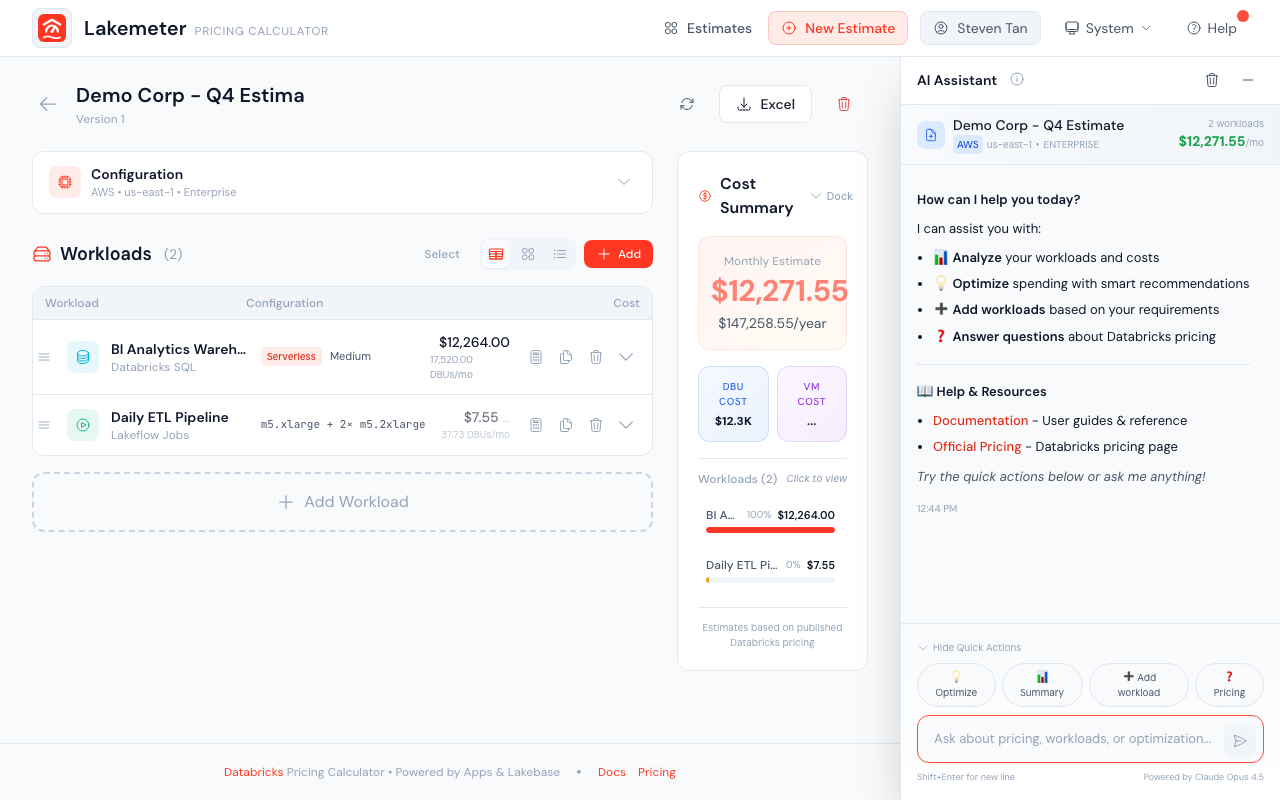 An estimate with multiple workloads showing individual costs and the total cost summary.
Step 5: Export to Excel
- Click the Excel button (download icon) at the top of the calculator page.
- An Excel file downloads named something like
Databricks_Estimate_Q4_Data_Platform_AWS_20260404.xlsx.
The spreadsheet includes:
- Header section with your estimate details (cloud, region, tier)
- Workload table with DBU, DSU, VM, list, and discounted costs
- Workload summary before Platform Add-ons
- Platform Add-on section with Product Spend at List and the applied uplift
- Final estimate summary with monthly and annual totals
- Assumptions and notes explaining the pricing basis
This file is ready to attach to an RFP response, share in a planning meeting, or use for internal budgeting.
What to try next
- Add more workloads -- use the Workload Sizing Guides to choose another supported workload.
- Use the AI Assistant -- click the chat icon on the right side and describe what you need. For example: "Add a Lakeflow Spark Declarative Pipeline." The assistant proposes workload configurations you can accept or modify. See the AI Assistant guide.
- Duplicate and compare -- duplicate your estimate, change the region or tier, and compare costs side by side.
- Follow the full workflow -- see the End-to-End Workflow guide for a complete walkthrough from creation through export interpretation.