Creating Estimates
An estimate is the top-level container for your Databricks cost analysis. Each estimate holds one or more workloads and is scoped to a specific cloud, region, and pricing tier.
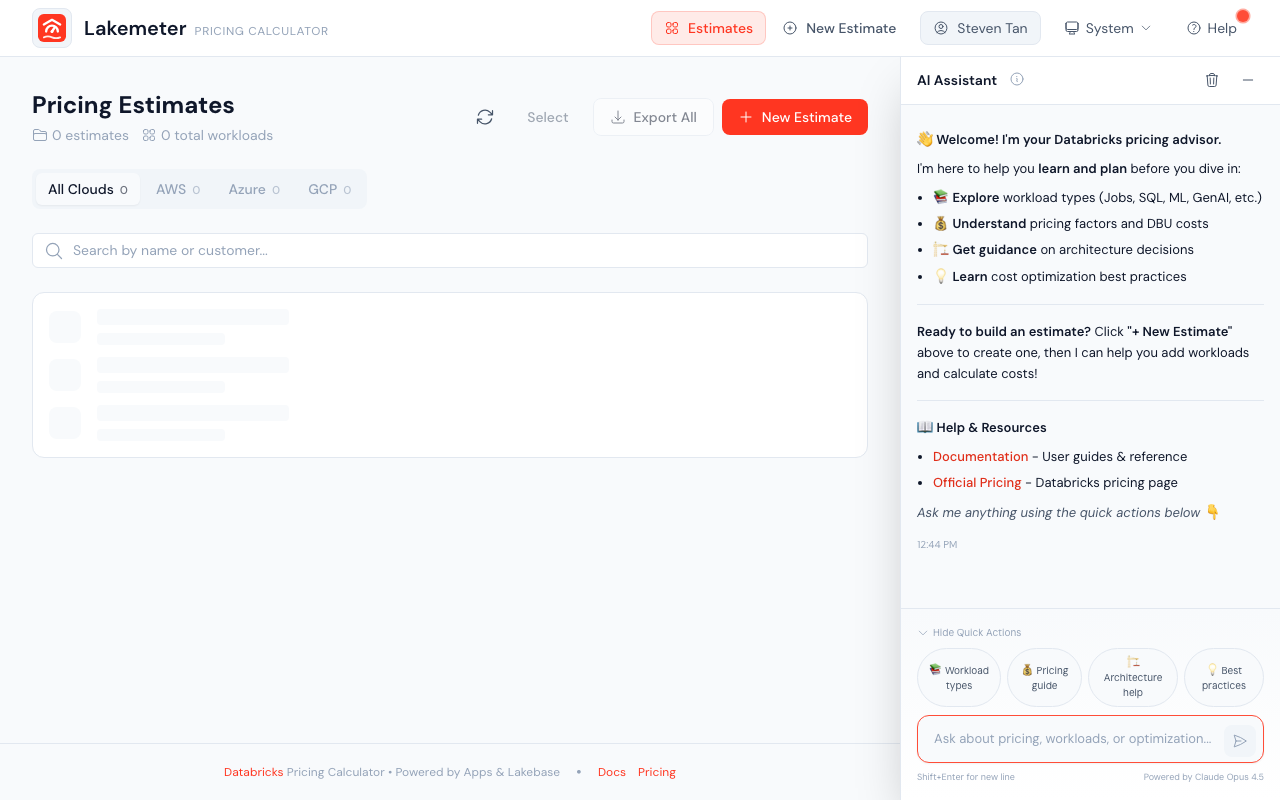 The estimates list page — create, search, and manage your cost estimates.
 Animated: the full estimate creation flow — enter a name, select cloud, region, and pricing tier, then click Create.
Estimate Fields
| Field | Required | Description |
|---|---|---|
| Estimate Name | Yes | A descriptive name for your estimate |
| Cloud | Yes | Deployment provider selected from the options shown |
| Region | Yes | Deployment region (options depend on selected cloud) |
| Tier | Yes | Pricing tier selected from the available options |
Creating a New Estimate
- Navigate to the Estimates page
- Click New Estimate
- Fill in the required fields
- Click Create
You'll be redirected to the calculator page where you can start adding workloads.
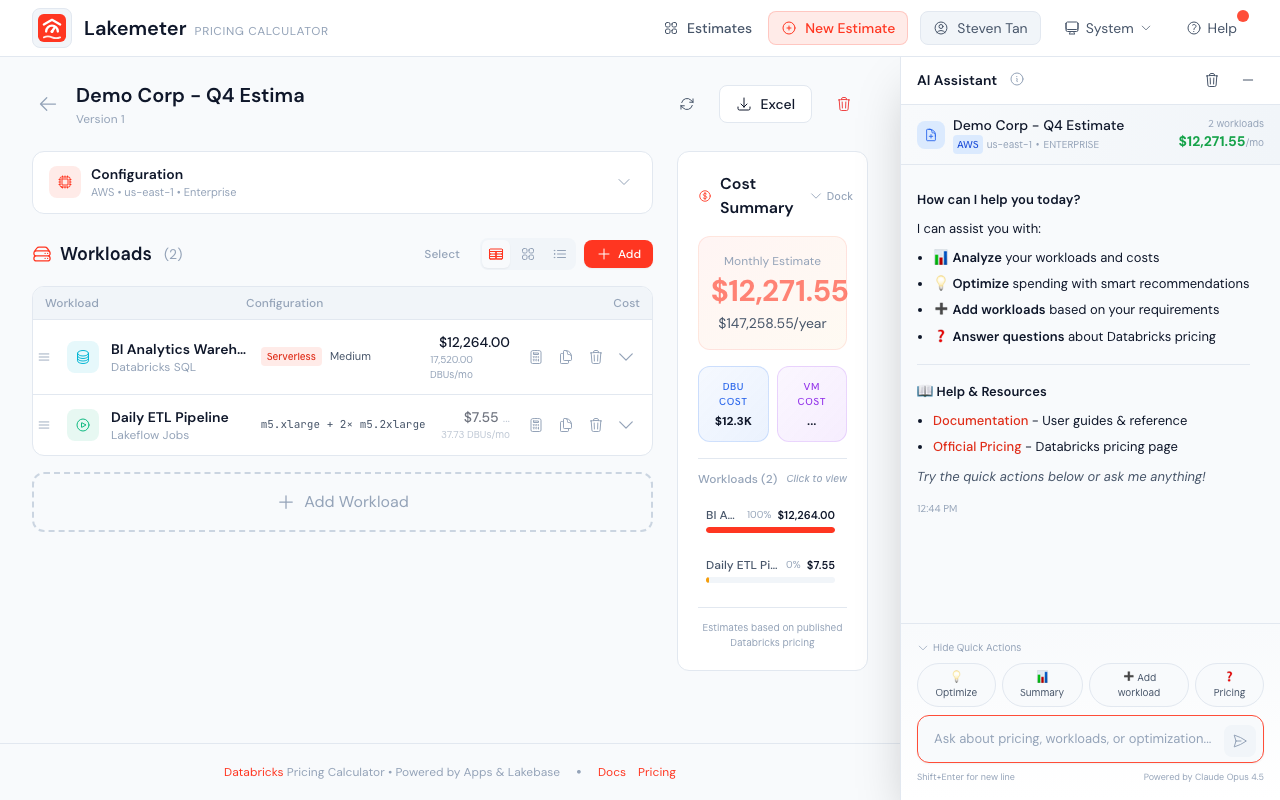 After creating an estimate, the calculator page is where you add and configure workloads.
Select a Platform Add-on on the calculator page after choosing the cloud and tier. The selection applies to the whole estimate rather than an individual workload. See Platform Add-ons for eligibility and cost calculation details.
Managing Estimates
Viewing Estimates
The estimates list page shows all your estimates with:
- Estimate name
- Number of workloads (line items)
- Creation and last updated dates
- Current status
Use the search bar to filter estimates by name.
Editing an Estimate
Click on any estimate to open it in the calculator. You can:
- Update the estimate name, region, or tier
- Add, edit, or remove workloads
- Reorder workloads by dragging
- Select or clear an eligible Platform Add-on
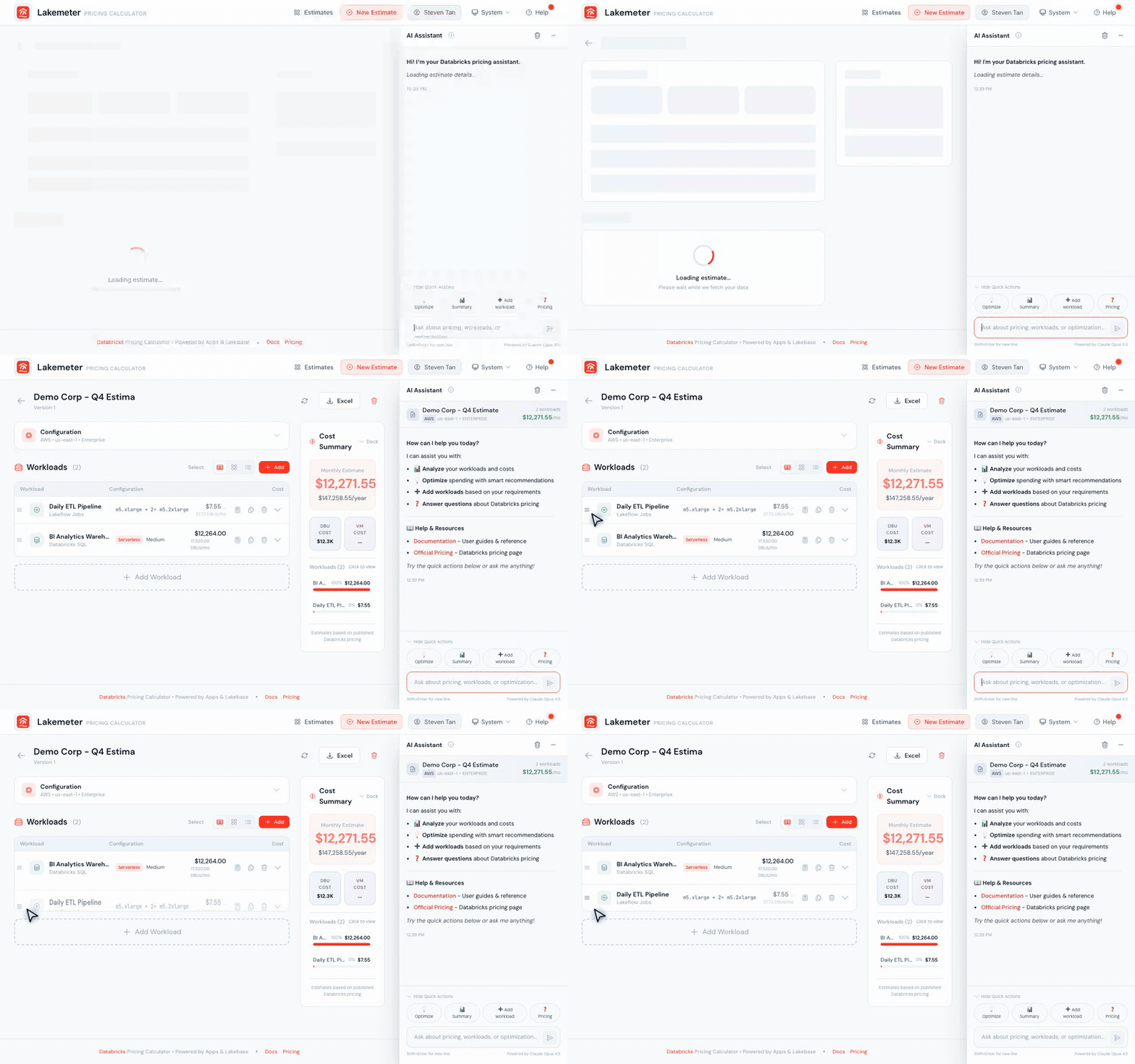 Animated: drag workloads to reorder them — the display order updates instantly.
Changing the cloud provider is blocked if the estimate already has workloads, since pricing and available instance types differ between clouds.
Changing cloud or tier clears a Platform Add-on selection when it is no longer eligible for the updated estimate.
Duplicating an Estimate
To create a copy of an existing estimate:
- Open the estimate
- Click Duplicate
The copy includes all workloads, discount configuration, and any Platform Add-on selection. The new estimate is named with a "(Copy)" suffix.
Deleting an Estimate
Estimates are soft-deleted — they're hidden from the list but preserved in the database. Only the estimate owner can delete it.
Estimate Statuses
| Status | Description |
|---|---|
| Draft | Work in progress (default) |
| Approved | Finalized and approved |
Versioning
Each save to an estimate increments its version number. This helps track changes over time.