AI Assistant
Lakemeter includes a built-in AI assistant powered by Claude that can answer pricing questions, configure workloads, and generate entire estimates from a natural language description.
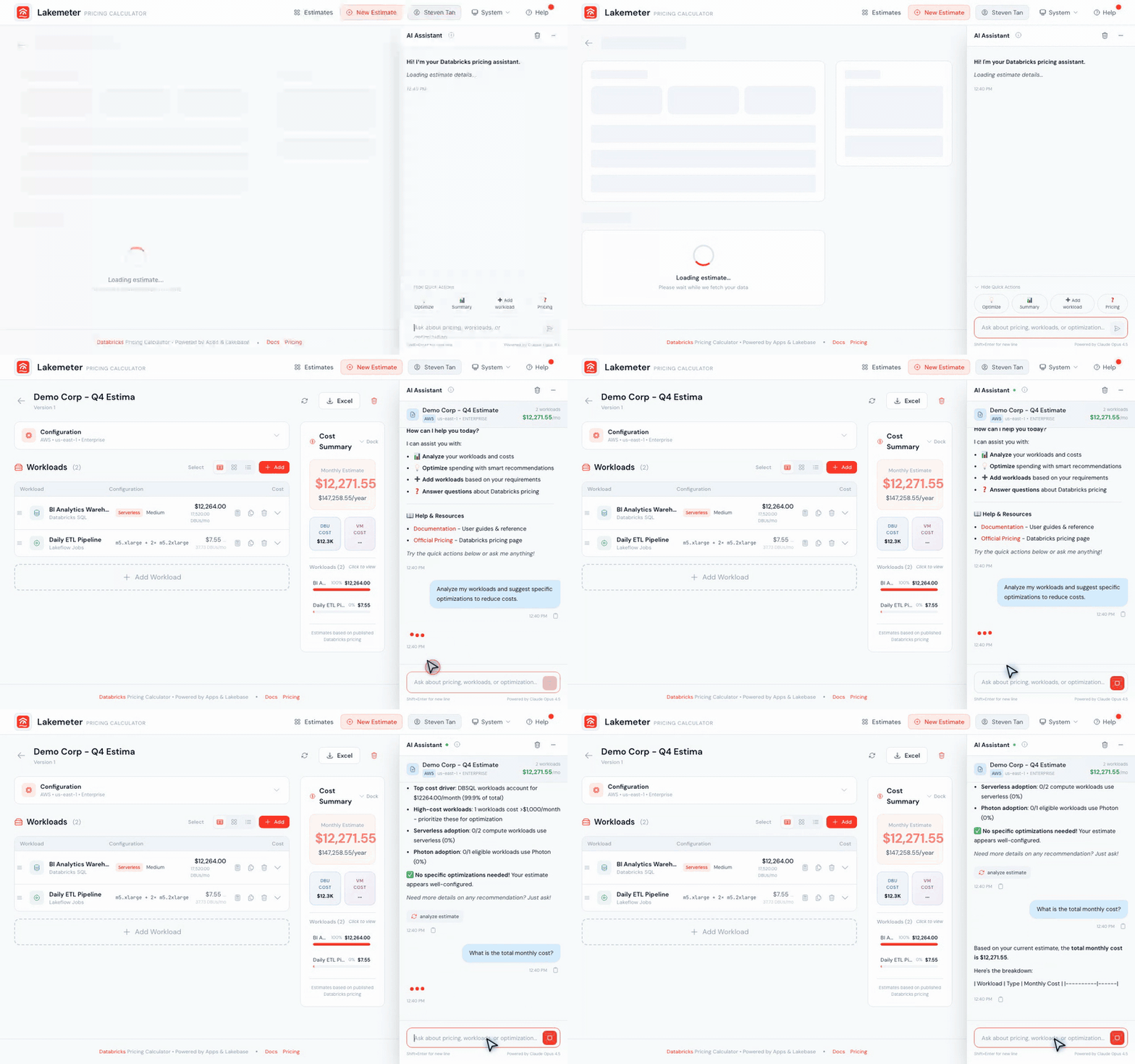 Animated: asking the AI assistant to add a workload — it proposes a configuration you can confirm, edit, or cancel.
How It Works
The assistant appears as a chat panel on the right side of the screen. It has access to Lakemeter's full pricing database and can create workloads directly in your estimate — no manual form-filling required.
Behind the scenes, the assistant uses five specialized tools:
| Tool | What it does |
|---|---|
| Propose Workload | Creates a supported workload configuration and adds it to your estimate after you confirm |
| Ask Clarifying Questions | Asks follow-up questions when your request is ambiguous before proposing anything |
| Get Estimate Summary | Reads your current estimate to understand what you already have |
| Analyze Estimate | Reviews your workloads and suggests cost optimizations or configuration improvements |
| Propose GenAI Architecture | Suggests a complete multi-workload stack for common AI patterns (RAG, document processing, etc.) |
Two Modes
Home Mode (Q&A Only)
When you're on the home page with no estimate open, the assistant operates in question-and-answer mode. It can answer general Databricks pricing questions but cannot create or modify workloads.
Good questions for Home Mode:
- "What's the difference between Classic and Serverless compute?"
- "How does DLT pricing work across editions?"
- "Which GPU types are available for Model Serving on AWS?"
Estimate Mode (Full Capabilities)
When you have an estimate open, the assistant gains full context — it can see your cloud provider, region, pricing tier, and all existing workloads. This unlocks workload creation, optimization analysis, and architecture suggestions.
Conversation Examples
Example 1: Creating a Single Workload
You: I need a Spark ETL job that runs 5 times a day, takes about 45 minutes each run, with 8 i3.xlarge workers on AWS. Use Photon.
Assistant: I'll set that up for you. Here's what I'm proposing:
Setting Value Type Jobs Compute Mode Classic Photon Enabled Driver i3.xlarge Workers 8 x i3.xlarge Runs/Day 5 Avg Runtime 45 min Days/Month 22 (business days) Estimated monthly cost: ~$X,XXX
[Confirm] [Edit] [Cancel]
When you click Confirm, the workload is created in your estimate with all fields populated. Click Edit to adjust any values before confirming.
Example 2: Generating a Complete Estimate
You: I'm building a data platform for a mid-size company. We need daily ETL pipelines, a BI analytics warehouse for 20 analysts, and a real-time ML inference endpoint. We're on AWS us-east-1, Premium tier.
Assistant: I'll design a complete platform for you. Let me propose three workloads:
- Daily ETL Pipeline — Jobs Serverless with Photon for your ingestion and transformation
- BI Analytics Warehouse — DBSQL Serverless (Medium) sized for 20 concurrent analysts
- ML Inference Endpoint — Model Serving with GPU for real-time predictions
[The assistant proposes each workload one at a time for your confirmation]
Example 3: Optimizing an Existing Estimate
You: How can I reduce costs on this estimate?
Assistant: Looking at your current estimate, I see a few opportunities:
- Jobs workload "Nightly Ingest" — You're using on-demand Classic compute. Switching to Serverless would eliminate VM costs and you'd only pay for actual compute time, saving ~30% for bursty workloads.
- DBSQL warehouse "Analyst Pool" — Your Large warehouse runs 730 hours/month (24/7). If analysts only work business hours, reducing to ~200 hours/month saves ~70%.
- Model Serving "Recommender" — Consider whether you need GPU Medium or if GPU Small would handle your throughput.
Example 4: Getting a GenAI Architecture
You: I want to build a RAG chatbot for our internal documentation.
Assistant: Here's a recommended GenAI stack for a RAG chatbot:
- AI Search (Storage Optimized) — Store and query document embeddings
- Model Serving (GPU) — Host the embedding model for document ingestion
- FMAPI (Claude or GPT) — Generate responses using retrieved context
- Jobs — Scheduled pipeline to re-index new documents
Shall I create all four workloads? I'll configure each one with sensible defaults for a documentation chatbot use case.
Applying AI-Generated Workloads
When the assistant proposes a workload:
- Review — The proposed configuration appears in the chat with all settings visible
- Confirm — Click to accept and create the workload in your estimate
- Edit — Modify any values before confirming (opens the workload form pre-filled)
- Cancel — Reject the proposal without creating anything
For multi-workload proposals (like a full platform estimate), the assistant proposes each workload sequentially. You confirm or reject each one individually.
Conversation Management
- The assistant maintains conversation history within a session. When the history grows beyond 25 messages, it is trimmed to the 15 most recent messages to keep responses fast and relevant.
- Click Clear to reset the conversation and start fresh
- History does not persist across browser sessions
Be specific in your requests. Instead of "add a warehouse," say "add a DBSQL Serverless Medium warehouse running 8 hours per business day for our analytics team." The more detail you provide, the more complete the proposed configuration will be.
AI responses are generated by a language model and may contain inaccuracies. Always verify pricing details against the official Databricks pricing page before making procurement decisions. The assistant does not perform live pricing lookups — it uses Lakemeter's bundled pricing data.