Install Lakemeter from Databricks Marketplace
Lakemeter can be installed directly from Databricks Marketplace as a managed Databricks App. The Marketplace package includes the application and its pricing reference data, so no local CLI, installer notebook, personal access token, or separate data upload is required.
Installing from Databricks Marketplace is the preferred way to install Lakemeter. Use the source installer only when Marketplace is unavailable in your workspace or you need to operate a customized source deployment.
Prerequisites
Before starting:
- A workspace administrator must perform the installation. Workspace administrators can install apps from Marketplace.
- Create a new, empty Lakebase database in the same Databricks workspace
where Lakemeter will be installed. The default Lakebase configuration and
default
databricks_postgresdatabase are supported. - Have a running Claude Model Serving endpoint available in the same workspace.
The administrator does not need to grant the app permissions before starting. During installation, Databricks grants the new app identity access to the selected Lakebase database and Model Serving endpoint.
Lakebase database
Only an empty Lakebase database in the same workspace is required. Do not create tables or load pricing data manually. Lakemeter creates its tables, calculation functions, and reference data automatically when the app first starts.
Each installation receives its own Databricks App service principal, which
creates and owns the lakemeter schema. Do not select a database containing a
lakemeter schema created by another app identity. Reusing that schema can
cause a permission denied for schema lakemeter startup error.
Claude Model Serving endpoint
Any running Claude endpoint available for the intended users' use can be selected, provided it supports the Databricks chat-completions request format.
During installation, Lakemeter binds the selected endpoint as
claude-endpoint with CAN_QUERY. The app service principal uses this
permission when a user invokes the AI assistant. Users do not provide endpoint
credentials to Lakemeter.
Check the endpoint's availability and rate limits before installation. A throttled endpoint affects the optional AI assistant but not manual estimates, calculations, or Excel export.
Installation flow
1. Find Lakemeter in Marketplace
In the Databricks workspace, open Marketplace, search for Lakemeter, and select Lakemeter - Databricks Cost Estimation App.
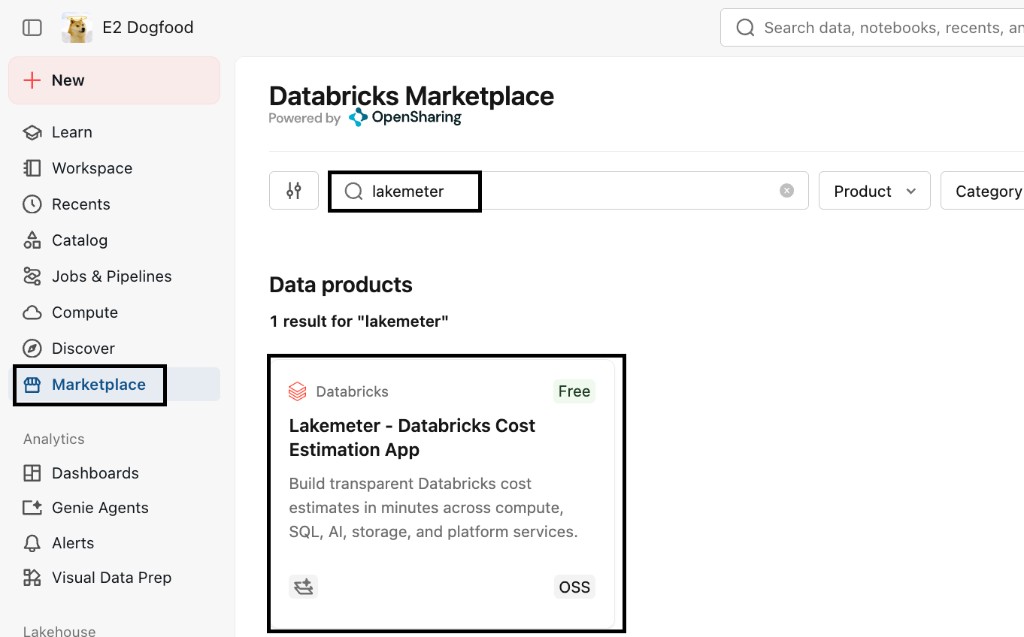
Select Install on the listing page.
2. Configure the app resources
Under Database, select the new Lakebase project, writable branch, and empty database prepared for this installation.
Under Serving endpoint, select the prepared Claude endpoint. Keep the default app compute configuration unless your organization requires a different size or instance count.
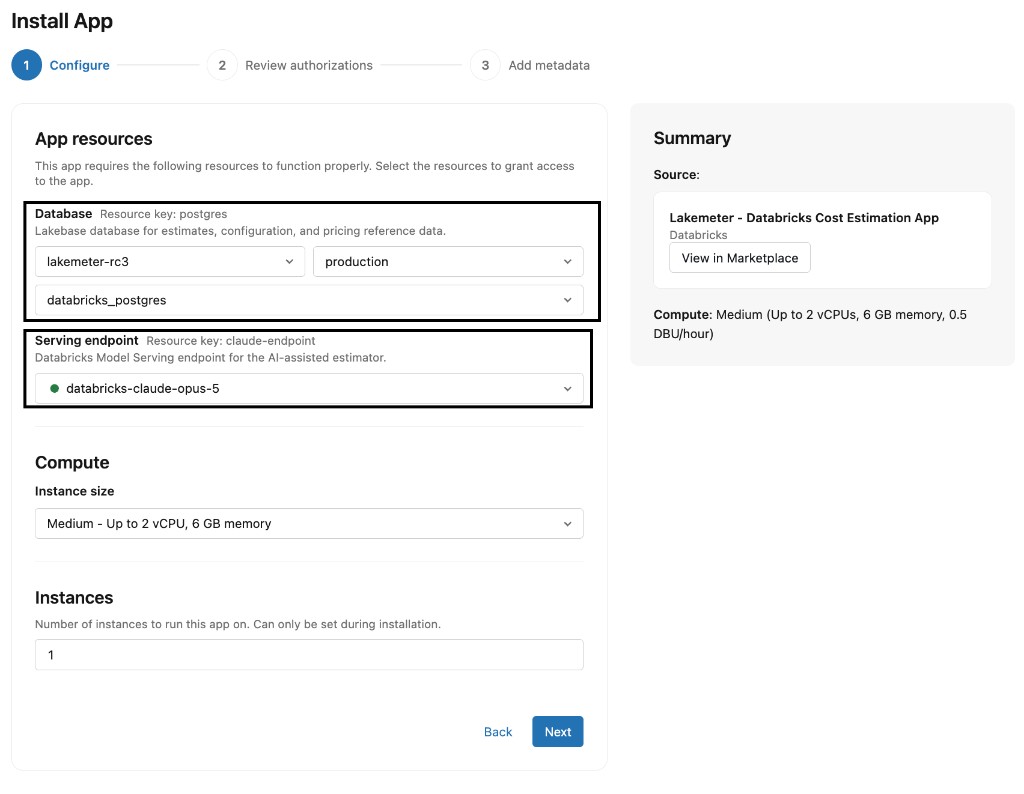
During installation, Databricks grants the app:
CAN_CONNECT_AND_CREATEon the selected Lakebase database.CAN_QUERYon the selected Model Serving endpoint.
Select Next.
3. Review authorizations
Review the permissions shown by Databricks and confirm that the selected Lakebase database and Model Serving endpoint are the intended resources. Continue only after the authorization review is complete.
4. Add metadata and install
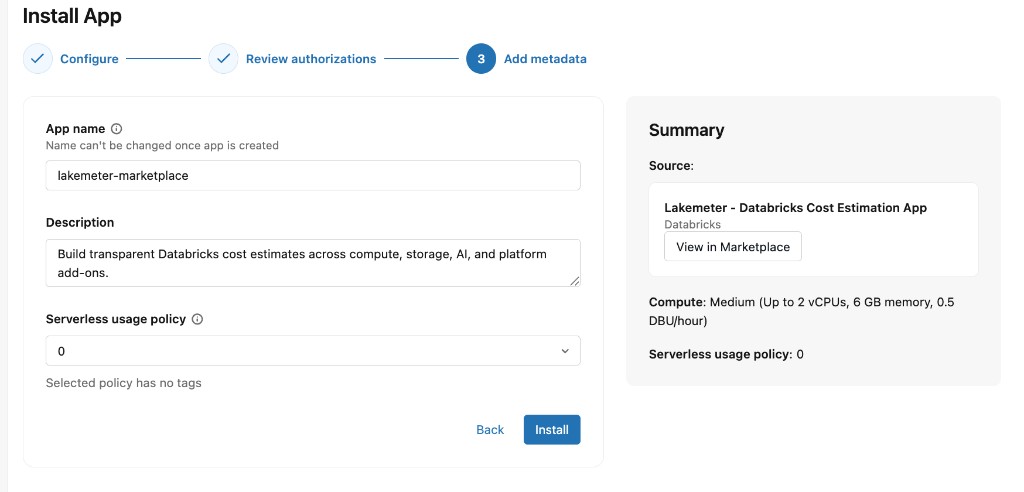
Enter an app name and description. The app name cannot be changed after the app is created. Select the serverless usage policy required by your organization, then select Install.
5. Wait for the app to start
Databricks creates the app identity, grants the two bound resources, deploys the Marketplace package, and starts the app. On first start, Lakemeter automatically:
- Connects to Lakebase with a short-lived OAuth database credential.
- Creates the
lakemeterschema and application tables. - Installs the calculation functions and reference records.
- Loads the packaged pricing data, including cloud VM pricing.
- Records the installed application version and pricing checksum.
Wait until the app status is Running and the active deployment is Succeeded, then select Open app. No additional bootstrap or pricing data step is required.
6. Grant users access to Lakemeter
After installation, open the Lakemeter app's Permissions page:
- Select Add user, group, or service principal.
- Select the users or workspace groups that should use Lakemeter.
- Grant CAN USE.
Only users with permission to use the app can open its URL. Prefer granting access to a workspace group when Lakemeter will be used by a team.
Troubleshooting
App does not start
Open the app's Deployments or Logs page and review the latest startup error. Confirm that the selected Lakebase database and Model Serving endpoint still exist in the same workspace and that the installation completed its resource grants.
Permission denied for schema lakemeter
The selected database likely contains a schema owned by another Lakemeter app identity. Bind a new empty database to the app, or migrate the schema ownership and grants deliberately if existing data must be preserved.
Lakebase connection timeout
A scale-to-zero Lakebase endpoint can take time to wake. Lakemeter retries transient connection timeouts during startup. If the retries continue to fail, confirm that the Lakebase endpoint is available and review the app deployment logs.
AI assistant is unavailable
Confirm that the selected Claude endpoint is running and that the app retains
CAN_QUERY. Model Serving rate limits can affect the AI assistant without
affecting the core estimate workflow.
Another user cannot open the app
On the app's Permissions page, grant the user or one of their workspace groups CAN USE. Installing Lakemeter does not automatically grant every workspace user access to it.
Upgrade a Marketplace installation
When the provider publishes a new Lakemeter version, Databricks displays an update on the installed app's page. A workspace administrator reviews and applies the update from Databricks Marketplace.
Marketplace upgrades preserve the existing app identity, resource bindings, permissions, and Lakebase data. Lakemeter runs its idempotent bootstrap after deployment to apply compatible packaged updates. Users do not need to reinstall the app or recreate their estimates.
If a release changes its required resources or permissions, Databricks shows those changes for administrator review before the update is applied.